

Output mapping options
Output mapping options: write transformation results to Storage tables and files, incremental loads, primary keys, deduplication strategy, deleting rows, the Snowflake import method, and file output.
Every option of a transformation’s output mapping: which results are written back to Storage tables and files, and how. For what mapping is and why it exists, see How input and output mapping work.
What the output mapping writes
Section titled “What the output mapping writes”An output mapping takes results (tables and files) from your transformation and stores them back in Storage.
It can create, overwrite, and append any table.
These tables are typically derived from the tables/files in the input mapping. In SQL transformations,
you can use any CREATE TABLE, CREATE VIEW, INSERT, UPDATE or DELETE queries to create the desired result.
The result of output mapping can be both Storage tables and Storage files. The common first choice is to use the table output mapping. The rule is that any tables or files not specified in the output mapping are considered temporary and are deleted when the transformation job ends. You can use this to your advantage and simplify the transformation script implementation (no need to worry about cleanup or intermediary steps).
Keep in mind that every table or file specified in the output mapping must be physically present in the staging area. A missing source table for the output mapping is an error. This is important when the results of a transformation are empty — you have to ensure that an empty table or an empty file (with a header or a manifest (opens in a new tab)) is created.
Table output mapping
Section titled “Table output mapping”Depending on the transformation backend, the table output mapping process can do the following:
- In case of Database Staging — copy the specified tables from the staging database into the project Storage tables.
- In case of File Staging — import the specified CSV files into project Storage tables.
The supported staging database type is Snowflake (opens in a new tab). The supported staging for CSV files is a storage local to the transformation.
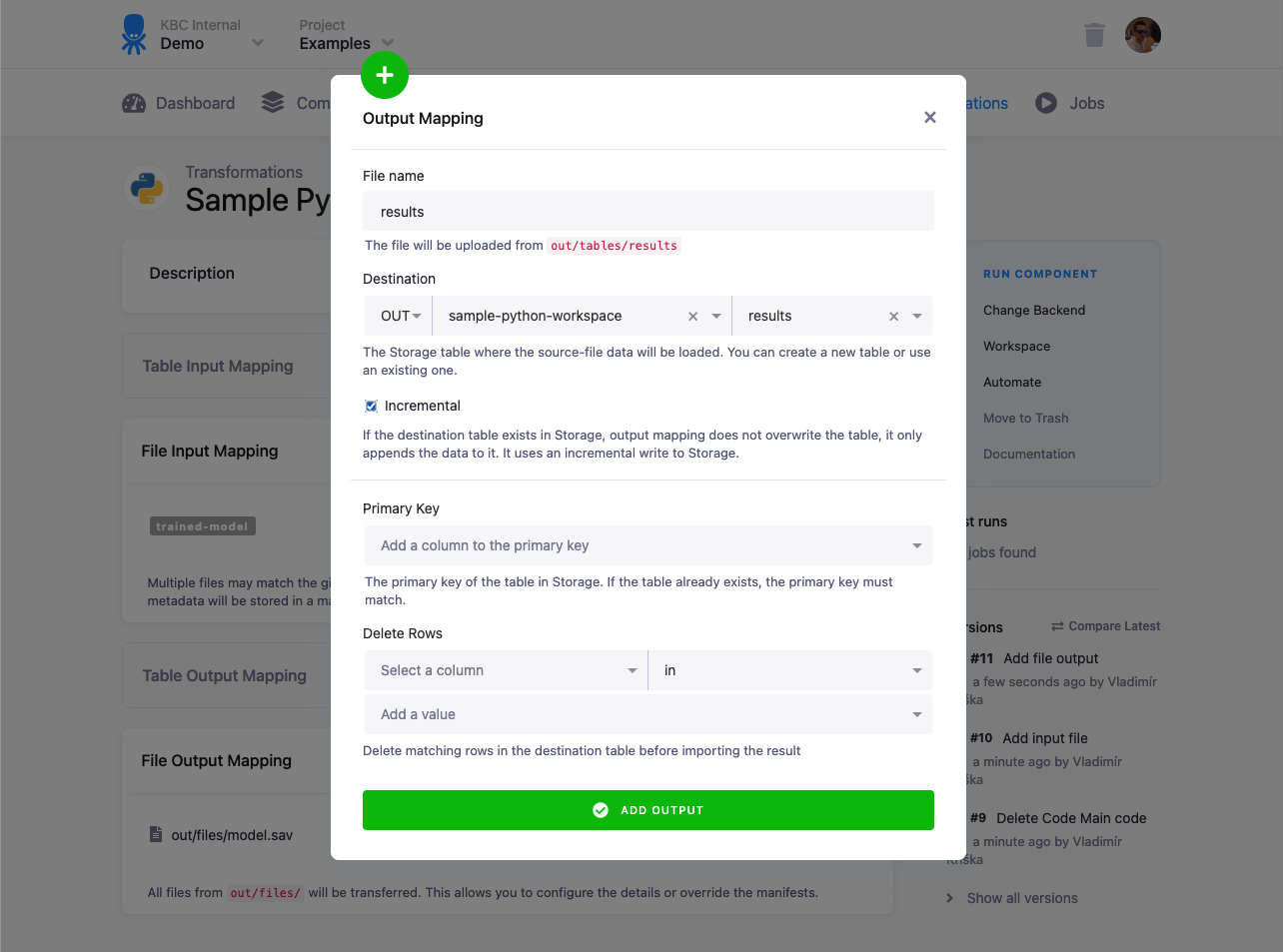
See an example of setting up an output mapping in our tutorial — in the UI tab.
Options
Section titled “Options”- Table — Enter the name of the table that should be created in the transformation.
- Destination — Select or type in the name of the Storage output table that will contain
the results of your transformation (i.e., contents of the Output Mapping source table).
- If this table does not exist yet, it will be created once the transformation runs.
- If this table already exists in Storage, the source table must match the structure of the destination table (all columns must be present, new columns will be added automatically).
- Incremental — Check this option to make sure that in case the Destination table already exists, it is not overwritten, but resulting data is appended to it. However, any existing row having the same primary key as a new row will be replaced. See the description of incremental loading for a detailed explanation and examples.
- Primary key — The primary key of the destination table; if the table already exists, the primary key must match. Feel free to use a multi-column primary key.
- Deduplication Strategy — This allows to switch in Snowflake transformations from the default load Upsert to Insert. Upsert option uses deduplication based on primary keys and ensures data quality. By switching to Insert, the load performs faster but skips deduplication and type casting - meaning you are responsible for uniqueness and correct data types. As this option is for high data maturity users, you can ask our support to enable this for your project as Deduplication Strategy is under feature flag.
- Delete rows — When Incremental loading is enabled, you can delete specific rows from the destination table before importing new data into the Storage. See Delete rows below.
- Partition-aware import (BigQuery only) — When Incremental loading and a primary key are set, limits the deduplication to the destination partitions the new rows belong to, so BigQuery does not read the whole destination table. It requires a partitioned destination table; see Partition-aware import.
- Import method (Snowflake only) — Chooses how Snowflake writes the loaded data into the destination table:
in one statement (
MERGEorINSERT OVERWRITE), or in several statements. Leave it at Platform default unless you need a specific method; see Import method.
Delete rows
Section titled “Delete rows”When Incremental loading is enabled, you can delete specific rows from the destination table before importing new data into the Storage. This gives you precise control over incremental updates. There are 2 options you can use:
- Delete rows from values - this option lets you manually specify values that identify rows to be removed from your destination table. This is particularly useful when the rows to delete are consistent, predictable, or rarely changing.
- Delete rows from transformation table - this option enables you to define deletion criteria using live data generated in your transformation. This method provides flexibility for more complex, data-driven scenarios, such as removing obsolete records based on recent transactions or other dynamic conditions. Please note that this option is available in the production environment only and is not supported in development branches (e.g. for testing or configuration changes in a development branch, the option will not be applied).
Deletion is performed using SQL DELETE statements:
-
Each deletion query you configure creates a separate SQL
DELETEstatement:DELETE FROM table_name WHERE condition; -
Multiple filters within a single query combine into a single
DELETEwithANDconditions:DELETE FROM table_name WHERE condition1 AND condition2 AND ...; -
Multiple queries result in separate
DELETEstatements, functioning as logicalOR:DELETE FROM table_name WHERE condition1;DELETE FROM table_name WHERE condition2;
In this scenario, rows matching any of the specified conditions across the queries will be deleted.
Import method (Snowflake)
Section titled “Import method (Snowflake)”When a table output mapping loads data into a Snowflake Storage table, Snowflake can write the destination table with
two methods: single statement or multi statement. The Import method option picks one of them, or leaves the choice
to the platform (Platform default, auto in the configuration JSON).
| Option | How Snowflake writes the table |
|---|---|
| Platform default | The output mapping does not set a method. If the component sets import_method in its output table manifest, that method is used. Otherwise Keboola chooses the method for the project: multi statement, unless Keboola has enabled the optimized Snowflake import for your project, in which case it is single statement. |
| Single statement (MERGE / INSERT OVERWRITE) | Incremental load: one MERGE that updates the existing rows and inserts the new ones. Full load: one INSERT OVERWRITE that replaces the table content; when the table has a primary key, the statement itself keeps one row per primary-key value. |
| Multi statement (legacy deduplication) | Incremental load: the new rows are deduplicated in a separate table, then several statements update the existing rows and insert the new ones. Full load: the new rows are deduplicated in a separate table (when the table has a primary key), then one transaction truncates the destination table and inserts the rows. Like single statement, a full load replaces the table content; it is not an upsert. |
To see which method a load used, open the storage.tableImportStarted event of the import job. On Snowflake it shows
importMethod (the method that ran) and importMethodSource: request for a method set in the output mapping or
the manifest, projectFeature for the optimized import enabled for the project, and default for the platform default.
A load with Platform default and no method in the manifest therefore shows which method your project uses.
Differences in the result
Section titled “Differences in the result”Both methods load the same data with one exception. On an incremental load from a Snowflake staging database
(a SQL transformation or a workspace) into a table without native data types, a
primary-key column can contain both NULL and an empty string (''):
- Single statement treats
NULLand''as the same key value and keeps one row. - Multi statement treats them as different values and keeps both rows.
Full loads give the same result with either method: both keep one row per primary-key value, and both treat NULL
and '' as different values. Loads from CSV files (File Staging) also give the same result with either method.
Where the option applies
Section titled “Where the option applies”The option is shown in the table output mapping, for any source type, when all of the following conditions are met:
- The project uses the Snowflake backend.
- The mapping does not use a direct grant (
unload_strategy: direct-grant); such a table is not imported at all. - Deduplication Strategy is not set to Insert, which skips deduplication.
When a condition stops being met, for example after you switch Deduplication Strategy to Insert, the UI removes the option from the mapping when you save it.
The option has no effect when the output mapping creates the destination table by its first load and the table columns are not known in advance. The table is new and empty, so there is nothing to deduplicate against.
Setting it in the configuration
Section titled “Setting it in the configuration”In the configuration JSON, the option is stored as import_method, with the value auto, single_statement, or
multi_statement:
{ "source": "out_product_prices", "destination": "out.c-prices.out_product_prices", "incremental": true, "primary_key": ["product_id", "date"], "import_method": "single_statement"}- Platform default in the UI leaves the key out of the configuration. A missing key and
automean the same. autois safe on every backend. An explicitsingle_statementormulti_statementfor a table in a bucket on a backend other than Snowflake makes the import fail with an error (storage.tables.importMethodNotSupported).- A component can also set
import_methodin its output table manifest. With a missing key orautoin the output mapping, the method from the manifest is used.single_statementormulti_statementin the output mapping takes precedence over the manifest.
File output mapping
Section titled “File output mapping”A file output mapping is used to store files produced by the transformation as Storage files. If you want to store CSV files as Storage tables, use table output mapping.
A file output mapping can be useful when your transformation produces, for example, trained models that are to be used in another transformation.
Only the files stored directly in the out/files/ directory can be mapped, subdirectories are not supported
(out/files/file.txt will work, out/files/subdir/file.txt won’t).
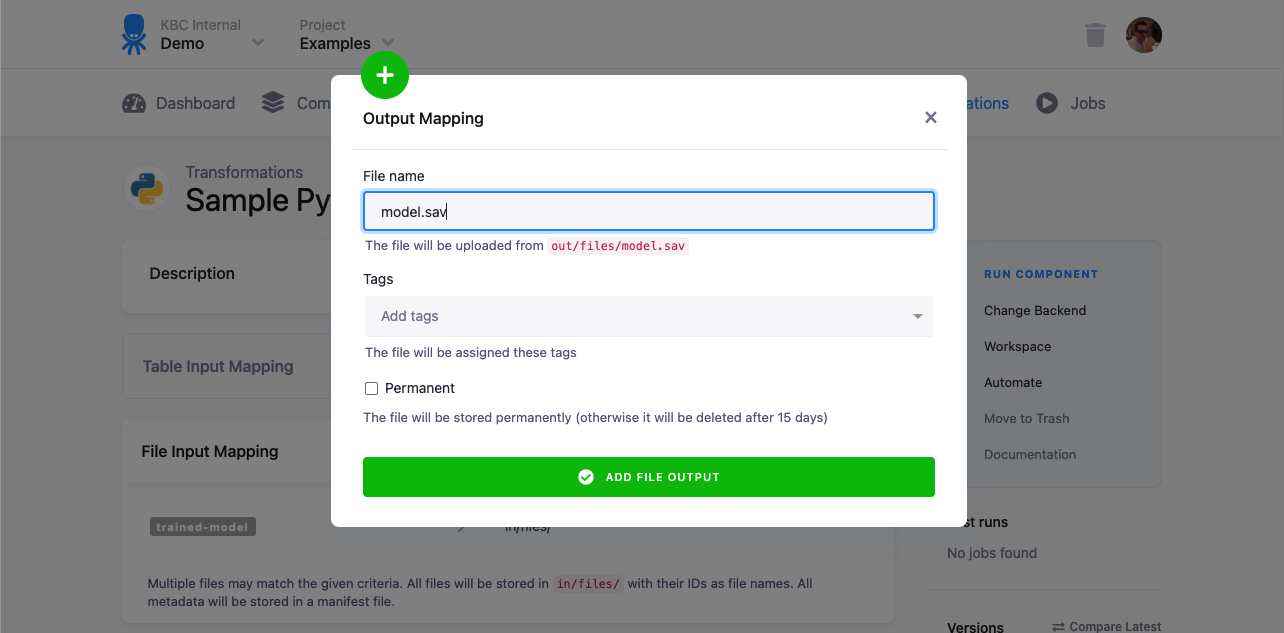
Options
Section titled “Options”- SourceName of the source file for mapping
- TagTags which will be applied to the target file uploaded in Storage
- PermanentThis option makes the file stay in the file Storage, until you delete it manually. If unchecked, the target file will be deleted after 15 days.
Was this page helpful?
Thank you for helping improve Keboola's documentation!