

Debug mode
Open debug mode on a component configuration to edit its raw JSON, set up processors, and run the component under a custom tag.
Debug mode shows the JSON behind a component configuration and adds some advanced options on how to run the component. This page shows how to edit the JSON there and how to run a specific version of a component.
Edit the JSON configuration
Section titled “Edit the JSON configuration”Goal: set parameters or processors that the visual form does not offer.
-
Open the configuration and click Debug mode in its right-hand panel. Clicking the Debug mode link allows you to access the JSON configuration directly, along with some advanced options on how to run the component.
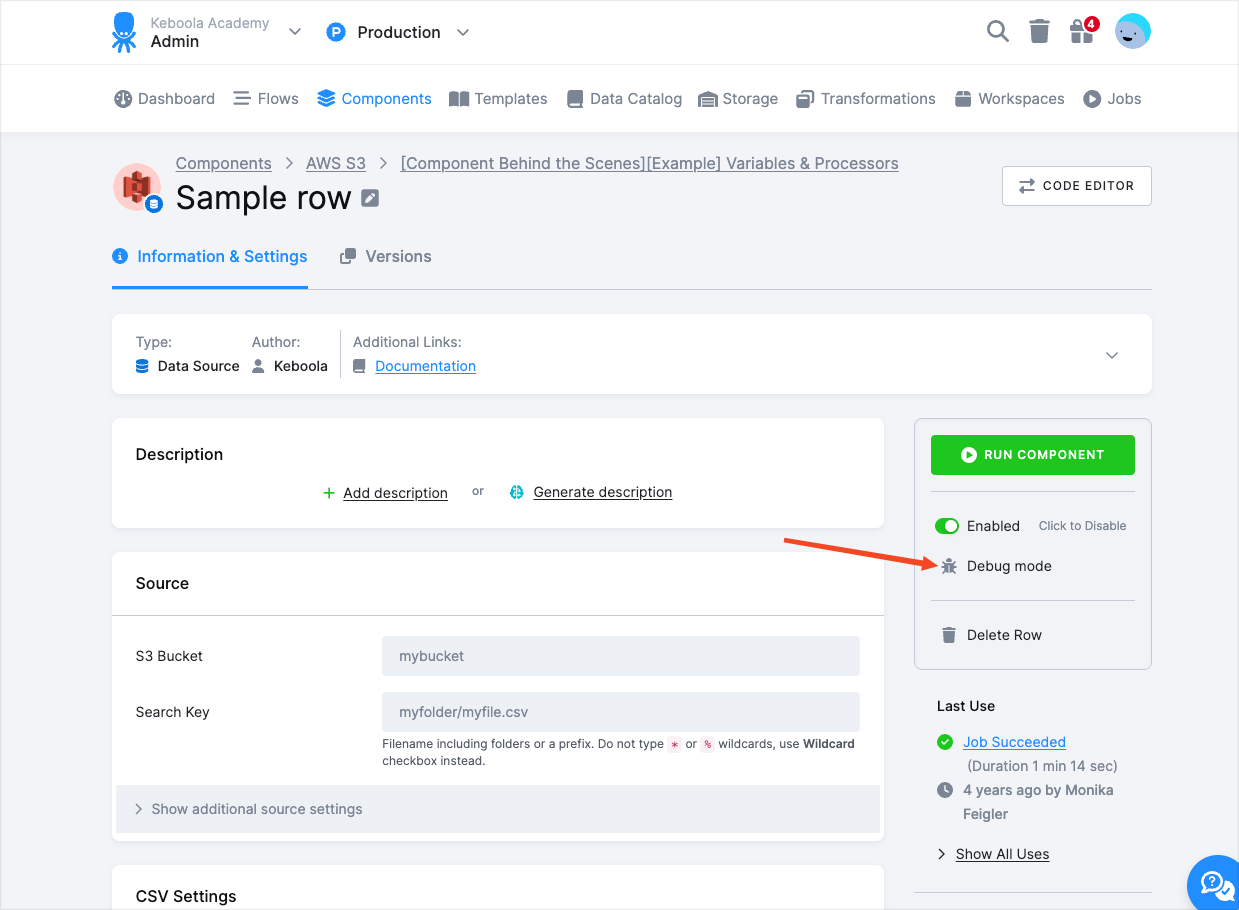
-
By editing the full JSON configuration, you can set up the component (all options are described in the component’s documentation, linked as Documentation under Additional Links at the top of the configuration) and the processors (to learn more about processors, see the Developers Docs (opens in a new tab)).
-
Save the configuration.
Result: the component runs with the JSON you saved. Changing the JSON configuration may render the visual form unable to represent the configuration, and switching back may be disabled. Reverting such changes will re-enable the visual form. But the JSON will translate back to the visual form whenever possible and vice versa.
Run a custom tag
Section titled “Run a custom tag”Goal: run a specific version of a component once.
When in Debug Mode, the Run Custom Tag option allows you to execute a specific version of a component.
In most cases, you will not need to use this option directly. However, our team may occasionally ask you to run a component under a custom tag — either as part of troubleshooting an issue you have reported to our support team, or as part of the release management process to test a new version before its official release.
- In debug mode, open the menu next to Run Job and select Run custom tag.
- In the Set Tag dialog, enter the tag and click Run With Tag.
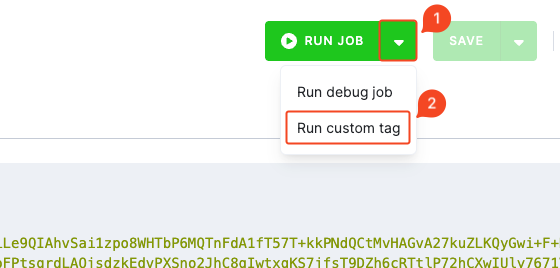
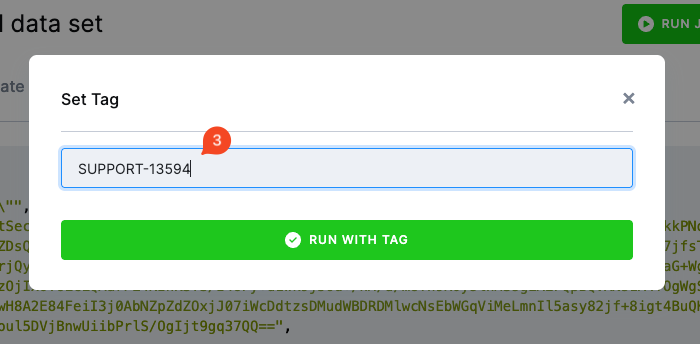
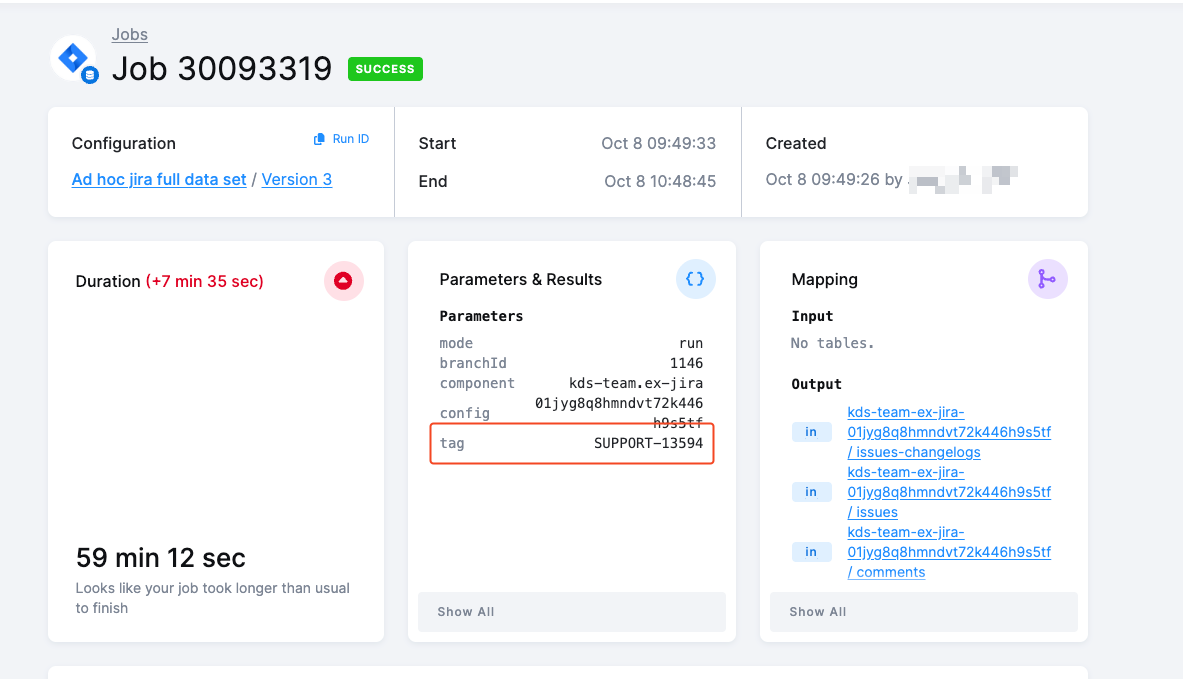
Result: the job runs under the tag you entered. You can confirm that the job ran under the custom tag in the job’s Parameters & Results section.
Was this page helpful?
Thank you for helping improve Keboola's documentation!