

Tableau Desktop Installation Guide
Install the Keboola JDBC driver in Tableau Desktop using the Other Databases (JDBC) connector.
This guide walks you through installing the Keboola JDBC driver in Tableau Desktop using the generic Other Databases (JDBC) connector.
Prerequisites
Section titled “Prerequisites”- Tableau Desktop 2021.1 or newer (older versions have an unreliable JDBC connector)
- A Keboola Storage API token with workspace access — see Storage API token for how to create one
1. Download the driver
Section titled “1. Download the driver”Download the latest keboola-jdbc-driver-X.Y.Z.jar from the GitHub Releases page.
2. Install the driver
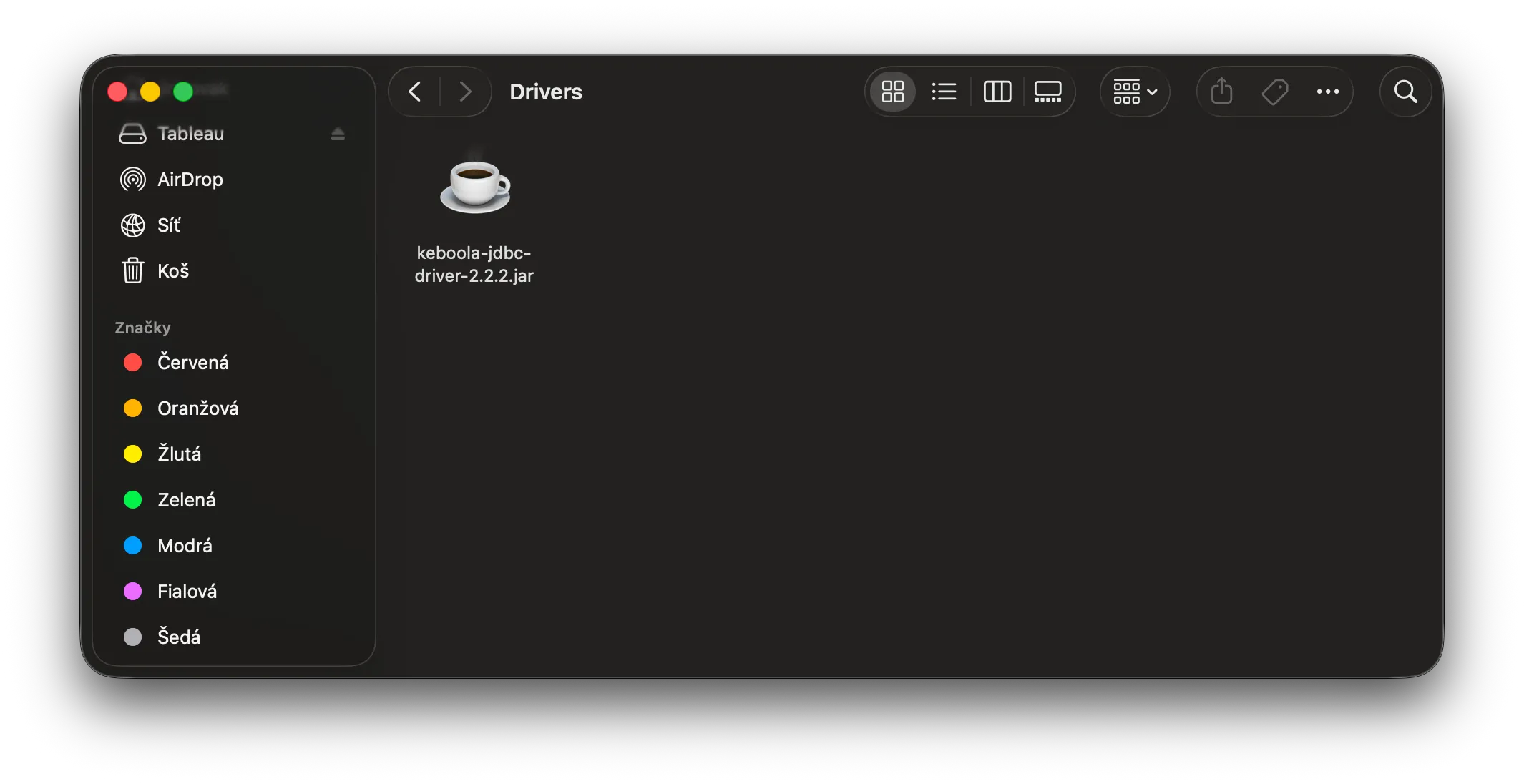
Section titled “2. Install the driver”Place the jar in Tableau’s drivers directory:
| OS | Path |
|---|---|
| macOS | ~/Library/Tableau/Drivers/ |
| Windows | C:\Program Files\Tableau\Drivers\ |
| Linux | /opt/tableau/tableau_driver/jdbc/ |
Create the directory if it doesn’t exist. Restart Tableau Desktop after dropping the jar — Tableau only scans the drivers folder at startup.
3. Create a connection
Section titled “3. Create a connection”-
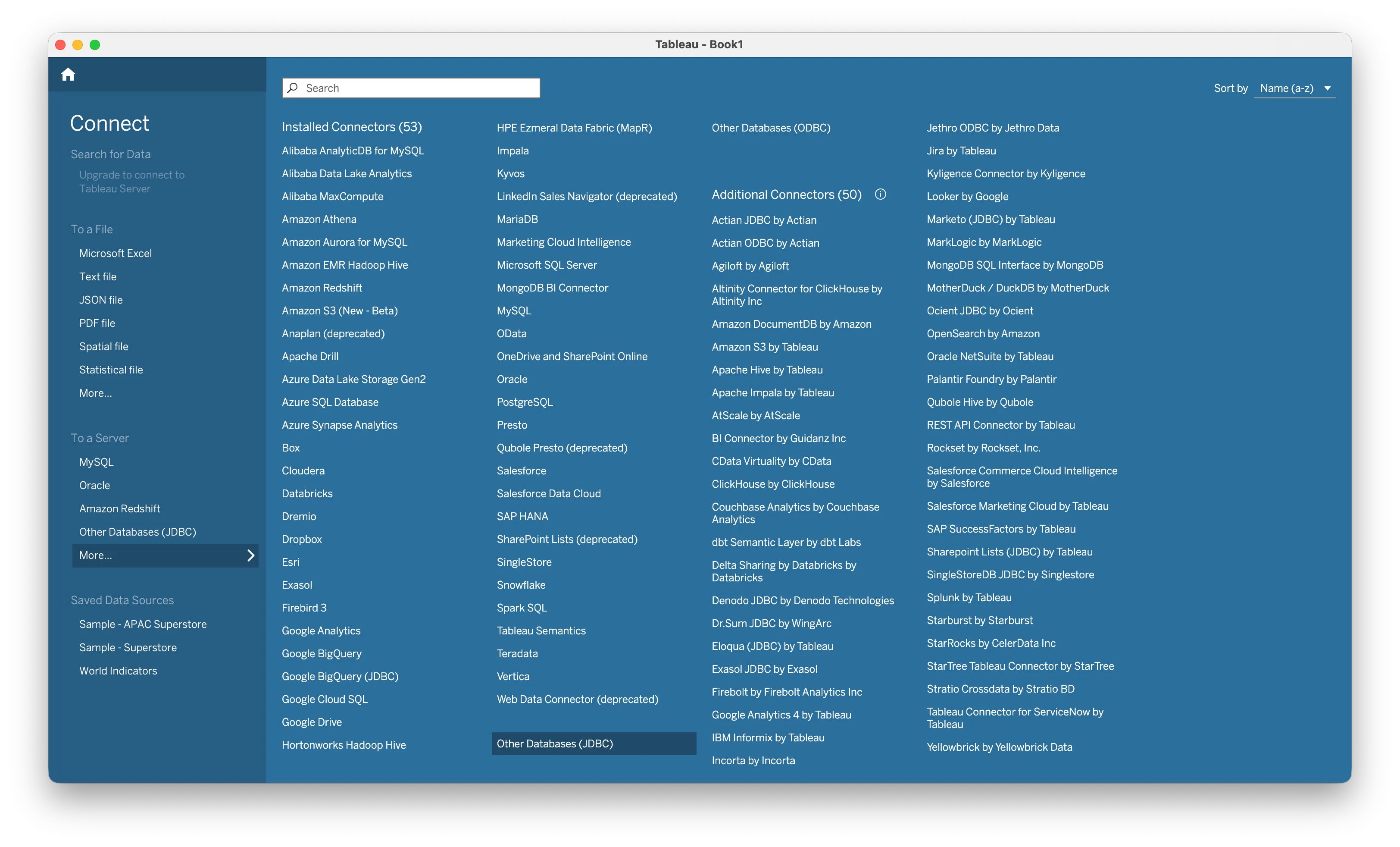
In Tableau, choose Connect → To a Server → More… → Other Databases (JDBC).
-
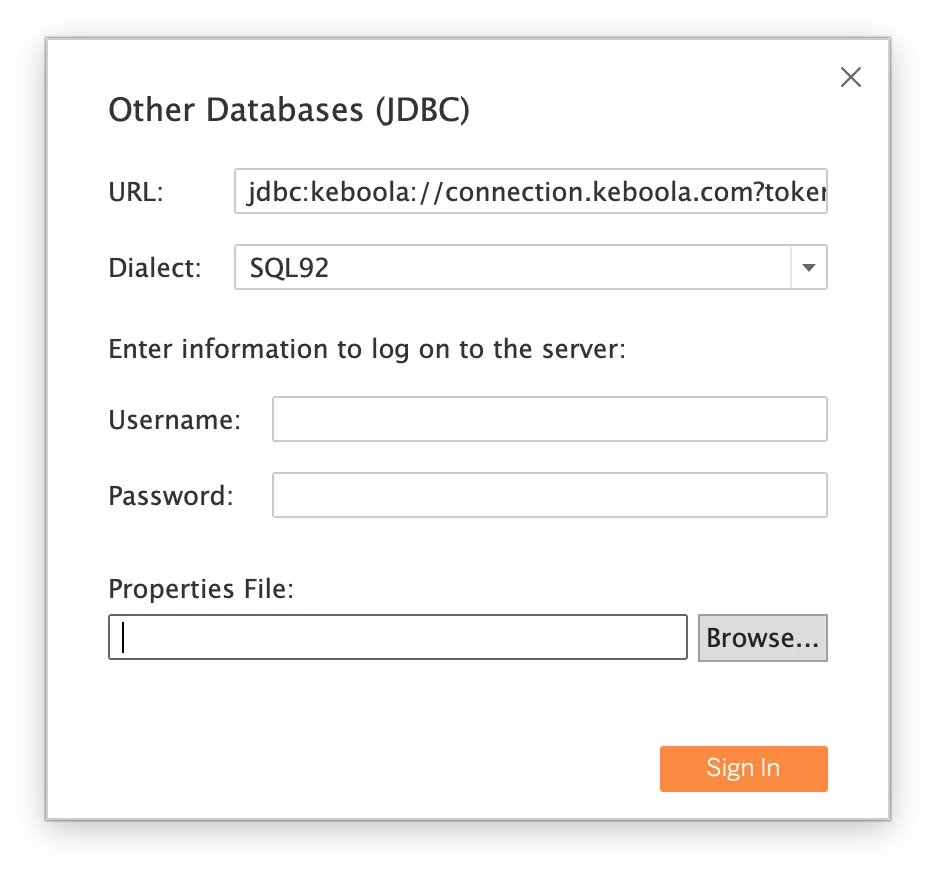
Fill in the connection form:
- URL:
Replace the host with your Keboola stack (e.g.jdbc:keboola://connection.keboola.com
connection.eu-central-1.keboola.com). Optional: append?branch=<id>&workspace=<id>to pin a specific branch or workspace; both are auto-detected if omitted. - Dialect:
SQL92 - Username: leave empty.
- Password: your Storage API token. The driver reads the token from the password field, keeping it out of the (plaintext) URL.
- URL:
-
Click Sign In.
4. First query
Section titled “4. First query”In the data source pane, switch to New Custom SQL and run:
SELECT * FROM _keboola.buckets LIMIT 10This returns one row per bucket in your project and confirms the driver is wired up. _keboola.buckets is one of five virtual tables exposing Keboola platform metadata (components, events, jobs, tables, buckets).
To browse real Snowflake tables, pick a database and schema from the left-hand pane — Tableau will populate them via standard JDBC metadata calls.
Troubleshooting
Section titled “Troubleshooting”- “Required driver not found”the jar isn’t in the Tableau drivers directory, or Tableau wasn’t restarted after dropping it in. Confirm the path matches the table above and relaunch Tableau.
- Authentication or 403 errorsyour token is likely bucket-scoped. Verify by hitting
https://connection.keboola.com/v2/storage/tokens/verifywith headerX-StorageApi-Token: <your-token>; a bucket-scoped token will not see workspaces. Create a non-scoped token per the Storage API token section. - “No workspaces found”the project has no workspace yet. Open the project in Keboola UI and create a workspace (Transformations → Workspaces).
- Custom stackreplace the host in the JDBC URL with your stack hostname (e.g.
jdbc:keboola://connection.north-europe.azure.keboola.com). Keep supplying the token in the Password field, not in the URL. - Generic “An error occurred” with no detailsTableau swallows JDBC error messages. Run the same connection in DBeaver to see the real error, then fix and retry in Tableau.
Need Help?
Section titled “Need Help?”For further help, reach out via Keboola Support.