

Data Streams Tutorial
In this tutorial, we will set up a data stream for the issues (opens in a new tab) event from GitHub Webhooks. This will allow you to monitor and analyze activity related to issues in any of your GitHub repositories.
Prerequisites
Section titled “Prerequisites”- The master token of a project user with the admin role (Users & Settings → API Tokens → your
own token). Write operations on streams are restricted to admin tokens — a custom
Storage API token, or the master token of a user with the guest or
read-only role, is rejected with
403 only admin token can do write operations on streams. - A GitHub repository where you have the
Adminrole. - Your stack’s Stream API host. The examples use
stream.keboola.com(AWS US); on other stacks replace the host accordingly. - A branch ID. The examples use
default, which refers to the production branch.
The destination bucket and table are created for you, so there is nothing to set up in Storage beforehand.
Creating a Source and a Sink
Section titled “Creating a Source and a Sink”A source is the endpoint that receives events; a sink maps received events into a Storage table. They are created separately, and a source without a sink discards everything it receives — so create both before pointing GitHub at it.
1. Create the source. Set sourceId explicitly so you know the ID for the next steps:
curl --request POST "https://stream.keboola.com/v1/branches/default/sources" \ --header "Content-Type: application/json" \ --header "X-StorageApi-Token: YOUR_TOKEN" \ --data '{"type": "http", "sourceId": "github-issues", "name": "GitHub Issues"}'The request is asynchronous and returns a task. Poll it until it finishes:
curl --header "X-StorageApi-Token: YOUR_TOKEN" \ "https://stream.keboola.com/v1/tasks/TASK_ID"Take TASK_ID from the taskId field of the create response — or just use its url field, which is the ready-made polling URL. A task ID is a multi-segment path built from the task type, the branch and source IDs, and a timestamp with a random suffix, so it legitimately contains / and : characters; pass it through as-is.
The task is done when isFinished is true. Then check status, which is success or error (on failure the reason is in error):
{ "taskId": "api.create.source/1234/github-issues/2026-01-14T08:04:05.123Z_Ab3xY", "type": "api.create.source", "url": "https://stream.keboola.com/v1/tasks/api.create.source/1234/github-issues/2026-01-14T08:04:05.123Z_Ab3xY", "status": "success", "isFinished": true, "createdAt": "2026-01-14T08:04:05.123Z", "outputs": { "sourceId": "github-issues", "url": "https://stream.keboola.com/v1/branches/1234/sources/github-issues" }}Here 1234 is your project’s default branch ID, resolved from the default you passed in the URL. On success, outputs.url is the ready-made source-detail URL used in step 3.
2. Create a sink on the source. The sink maps event data to columns of a destination table. The JSON is passed on standard input so that the quotes inside the Jsonnet template survive:
curl --request POST "https://stream.keboola.com/v1/branches/default/sources/github-issues/sinks" \ --header "Content-Type: application/json" \ --header "X-StorageApi-Token: YOUR_TOKEN" \ --data @- <<'JSON'{ "type": "table", "sinkId": "events", "name": "Events", "table": { "type": "keboola", "tableId": "in.c-github.issues", "mapping": { "columns": [ { "type": "uuid", "name": "id" }, { "type": "datetime", "name": "datetime" }, { "type": "ip", "name": "ip" }, { "type": "body", "name": "body" }, { "type": "headers", "name": "headers" }, { "type": "path", "name": "issue_id", "path": "issue.id", "defaultValue": "undefined", "rawString": true }, { "type": "template", "name": "summary", "template": { "language": "jsonnet", "content": "'#' + Body('issue.id', 'n/a') + ': ' + Body('issue.body', 'n/a')" } } ] } }}JSONBoth Body() calls above pass a default value. That matters because GitHub sends a ping event as soon as you add the webhook, and that payload has no issue field — a single-argument Body('issue.id') fails on it and the record is dropped.
This request is also asynchronous — poll the returned task the same way.
3. Get the source’s ingest URL. Fetch the source detail:
curl --header "X-StorageApi-Token: YOUR_TOKEN" \ "https://stream.keboola.com/v1/branches/default/sources/github-issues"The response contains the source’s ingest URL in the http.url field — a value of the form
https://stream-in.keboola.com/stream/<projectId>/<sourceId>/<secret>. Note that events are ingested on a separate
data-plane host (stream-in.<stack>), not on the Stream API host you have been calling so far. Copy the value from the
response rather than assembling it by hand; the secret is what authenticates the requests. This is the endpoint you will
point the GitHub webhook at.
By default, received events are imported into the table when the import conditions are met (defaults: 1 minute / 50 MB / 50,000 records — adjustable via the sink settings endpoints).
Normally, the ingest URL only returns a short response to reduce traffic. You can add ?verbose=true to it to receive more information about what happened with the request. This makes the response slower, so use it for testing only.
Configuring the Github Webhook
Section titled “Configuring the Github Webhook”Go to the Settings tab of your repository.

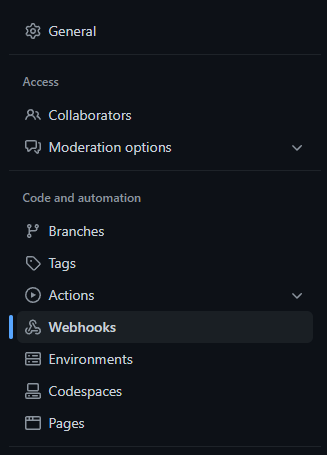
Open the Webhooks page.
Click Add webhook.

Enter the source’s ingest URL into the Payload URL field, and set the Content type to application/json. Leave
Secret empty — the secret embedded in the ingest URL is what authenticates the request, and GitHub’s signature header
is not verified.
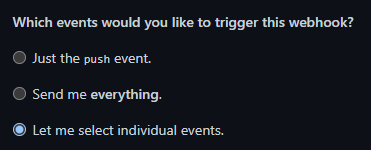
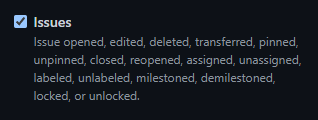
For Which events would you like to trigger this webhook?, click Let me select individual events, then find Issues and tick it:
Click Add webhook at the bottom of the page.
Any events related to issues in your repository will now be buffered by the source and imported into your table when the import conditions are met (about a minute with the defaults).
To see your integration at work, head over to your repository and open a few issues (opens in a new tab).
Results
Section titled “Results”Creating the sink automatically generated a dedicated token in your project — you did not create it yourself. It has the minimum scope: write access to the destination bucket, plus read access to all file uploads (files are used as staging storage to prevent data loss). Its description follows the format [_internal] Stream Sink <source-id>/<sink-id>, so with the IDs used above it reads [_internal] Stream Sink github-issues/events — do not delete or refresh it manually (see Tokens).

You can see the staging files in your project’s Storage:

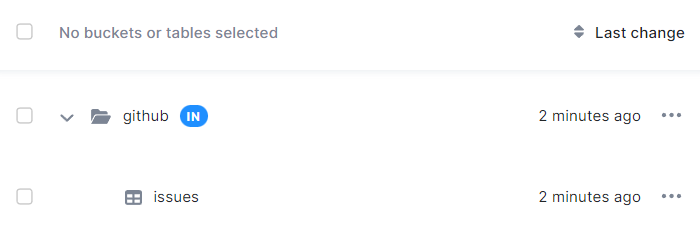
Since the table in.c-github.issues did not exist, it was created:
Verify the data landed — open the table’s Data Sample in the UI, or fetch the table detail via the Storage API:
curl --header "X-StorageApi-Token: YOUR_TOKEN" \ "https://connection.keboola.com/v2/storage/tables/in.c-github.issues"A non-zero rowsCount in the response confirms the events were imported. Give it a minute — with the default import
conditions rowsCount legitimately stays at 0 until the first import runs. (Replace connection.keboola.com with your
own stack’s host if you are not on AWS US.)

Cleaning Up
Section titled “Cleaning Up”To undo everything from this tutorial:
- Delete the webhook in GitHub (Settings → Webhooks → Delete).
- Delete the source, which deletes its sinks and the generated token with it:
curl --request DELETE "https://stream.keboola.com/v1/branches/default/sources/github-issues" \ --header "X-StorageApi-Token: YOUR_TOKEN"- Optionally drop the
in.c-githubbucket in Storage if you no longer need the collected data.
Next Steps
Section titled “Next Steps”Was this page helpful?
Thank you for helping improve Keboola's documentation!