

Migration Guide
This guide walks you through migrating an existing Legacy Flow to the new Conditional Flow engine. The migration is non-destructive: your original Legacy Flow is preserved — kept for reference and automatically disabled — while a new Conditional Flow is created alongside it. You can review the converted version safely before relying on it in production.
Prerequisites
Section titled “Prerequisites”- At least one existing Legacy Flow you want to migrate.
- Familiarity with Conditional Flows — the migrated Legacy Flow will run on that engine, and the Conditional Flow concepts (phases, conditions, variables, retries) will be visible in the result.
Step 1: Open Migration Preview
Section titled “Step 1: Open Migration Preview”Navigate to Conditional Flows > Legacy Flows in the top menu and open the detail of the Legacy Flow you want to migrate. A blue banner appears on the Legacy Flow detail reading “This Legacy Flow can be migrated to a Conditional Flow”, together with a green Migration Preview button.
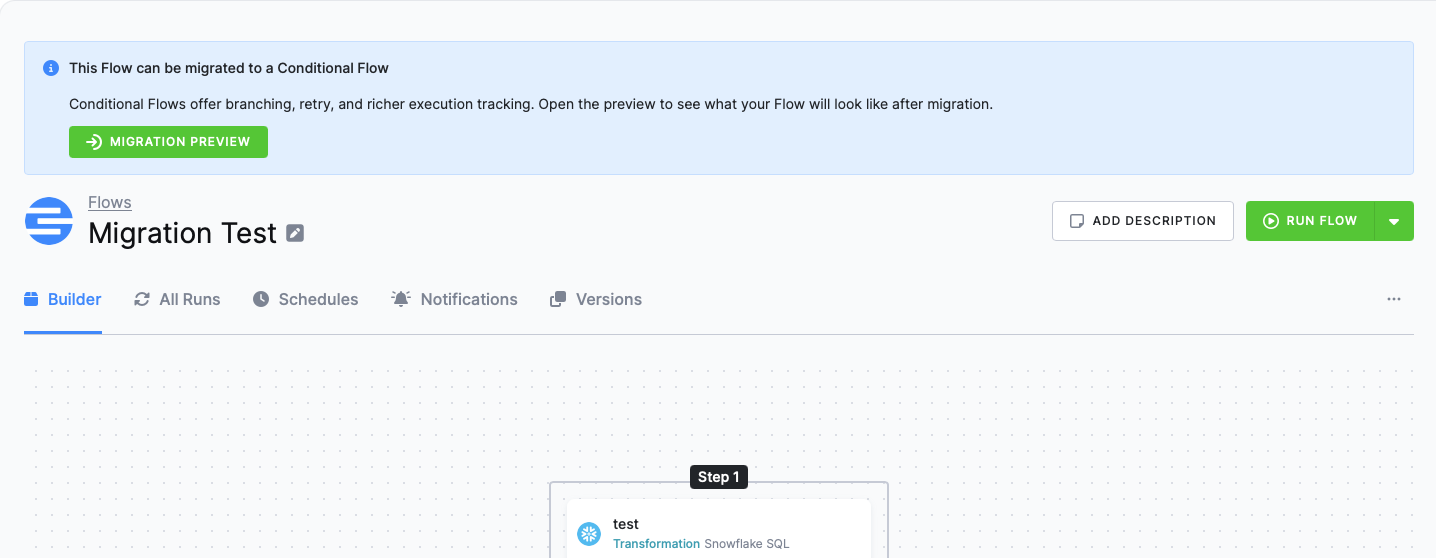
Click Migration Preview to open a non-destructive preview of how the Legacy Flow would look once it has been converted to a Conditional Flow.
If you do not see the Migration Preview button on the Legacy Flow detail, contact Keboola Support and ask them to enable the migration for your project.
Step 2: Review the Conditional Flow preview
Section titled “Step 2: Review the Conditional Flow preview”The preview opens a side-by-side view: the Current Legacy Flow on the left and the Conditional Flow that will be created on the right. Two information panels summarize the migration:
- The THIS WILL panel describes the three guarantees of the migration:
- Create a new Conditional Flow with the migrated configuration.
- Copy schedules, triggers, and notifications to the new Conditional Flow.
- Disable this Legacy Flow (kept for reference).
- The STRUCTURAL CHANGES panel lists the concrete transformations applied to the Legacy Flow configuration — for example, “Converted phase/task identifiers to strings” and “Rewrote phases[].dependsOn into next transitions”.
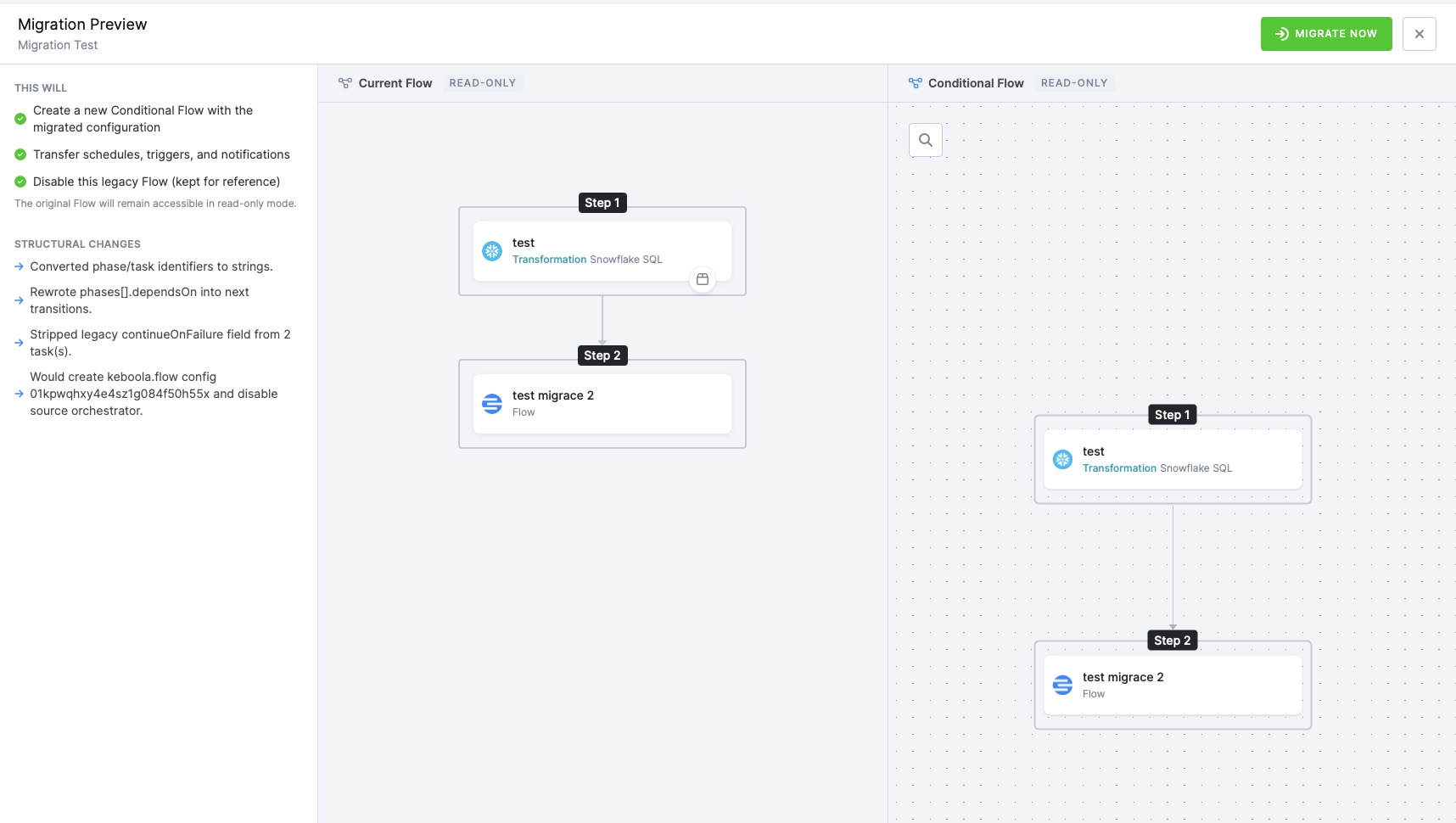
Use this view to:
- Verify that all phases and tasks from the original Legacy Flow are represented in the Conditional Flow.
- Read through the structural changes so you understand how Legacy Flow concepts (such as the Continue on Failure toggle) have been translated into Conditional Flow primitives. Conditional Flows have no per-task Continue on Failure toggle - the behavior is migrated into a condition on the phase; see Continue on Failure in Conditional Flows.
The preview is read-only. No changes are made to your project until you explicitly start the migration.
Step 3: Run the migration
Section titled “Step 3: Run the migration”When you are ready, click Migrate Now in the top-right corner of the Migration Preview to start the migration. Keboola triggers a job that creates a new Conditional Flow from your existing Legacy Flow configuration, copies schedules, triggers, and notifications to it, and disables the Legacy Flow.
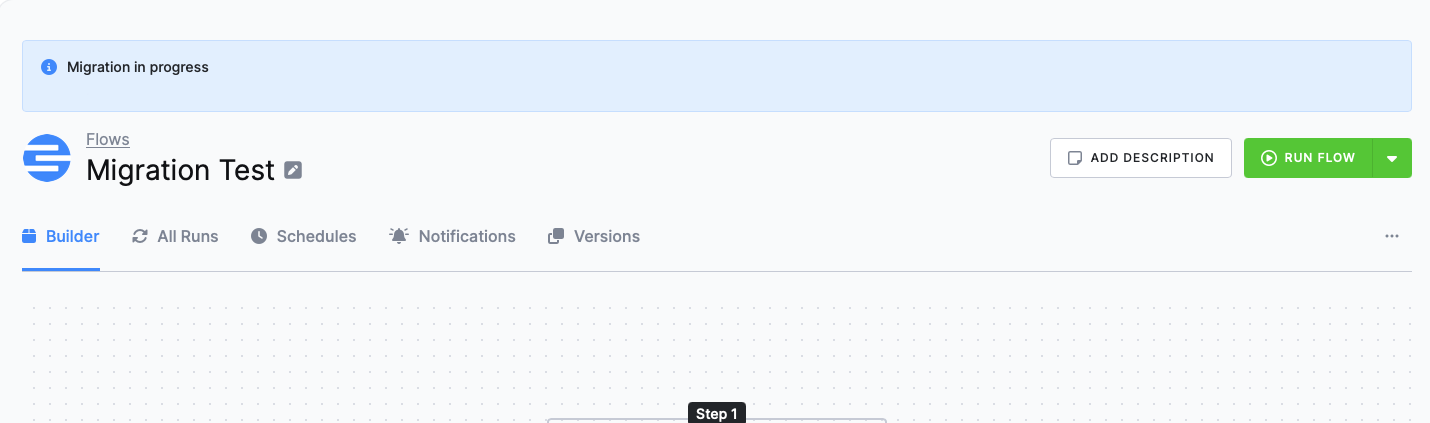
While the job is running, the Legacy Flow detail shows a blue “Migration in progress” banner.
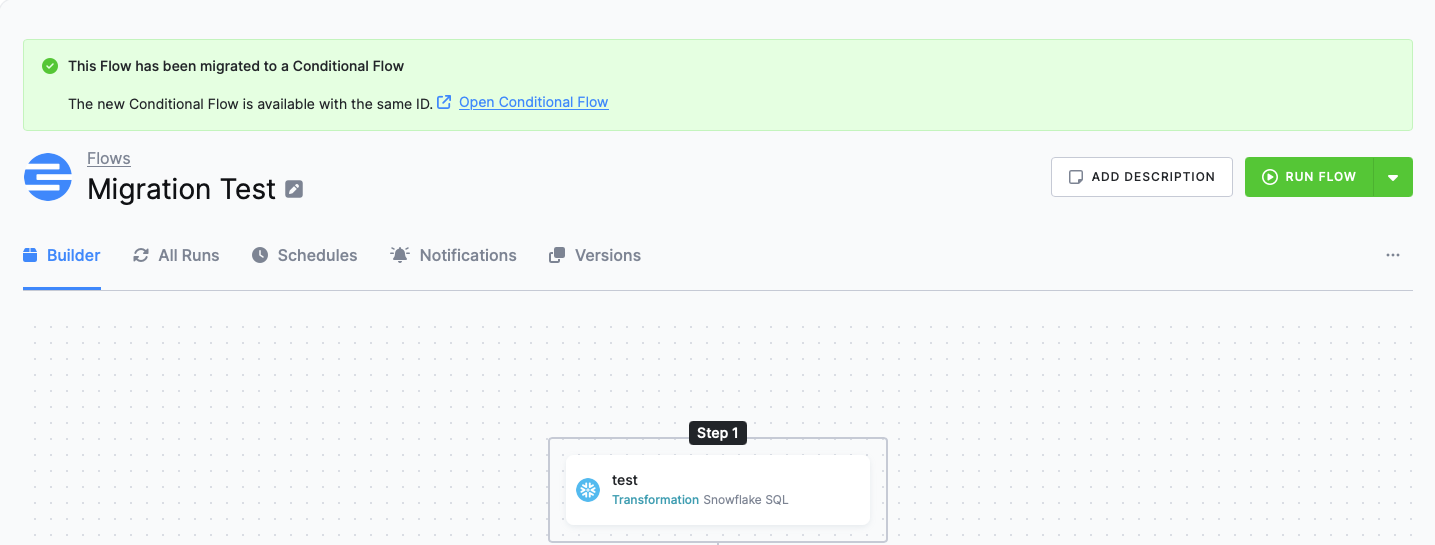
Once the migration finishes, the Legacy Flow detail shows a green “This Legacy Flow has been migrated to a Conditional Flow” banner with an Open Conditional Flow link to the newly created Conditional Flow.
After the migration
Section titled “After the migration”The migration job performs the following steps:
- A new Conditional Flow has been created with the migrated configuration.
- Schedules, triggers, and notifications have been copied to the new Conditional Flow automatically — you do not need to set them up manually.
- The Legacy Flow has been disabled automatically. It is kept in your project as a read-only reference.
Recommended next steps:
- Open the new Conditional Flow via the Open Conditional Flow link in the success banner.
- Run the new Conditional Flow manually and confirm it produces the expected result.
- Once you are confident in the new Conditional Flow over one or more production runs, you can delete the disabled Legacy Flow if you no longer need it as a reference.