

Continue on Failure in Conditional Flows
Conditional Flows have no per-task Continue on Failure toggle. The Legacy Flow behavior is migrated into a Continue on Failure condition on the phase; learn what the migration produces and how to build or extend it yourself.
In Legacy Flows, enabling Continue on Failure on a task made the task finish with a warning status instead of failing the whole Flow. Conditional Flows have no per-task toggle - the same rule is expressed with a condition on the phase.
What the migration produces
Section titled “What the migration produces”When you migrate a Legacy Flow using the Migration Guide, tasks with Continue on Failure enabled are translated into a Continue on Failure condition on their phase: all tasks of the phase must succeed, except those that had the toggle on. You don’t have to rebuild anything manually.
You can review and change the result in the Builder - the condition uses the Continue on Failure subject, and the tasks allowed to fail are listed in the All tasks of the phase must succeed, except selector.
Build it yourself
Section titled “Build it yourself”You can add the same condition to any phase, whether it came from a migration or not:
- Add a condition to the phase.
- As the subject, pick the phase and then Continue on Failure.
- In the All tasks of the phase must succeed, except selector, pick the tasks that are allowed to fail.
Every other task in the phase must succeed for the branch to be taken. Leave the selector empty to require that the whole phase succeeds.
Notify when a task fails
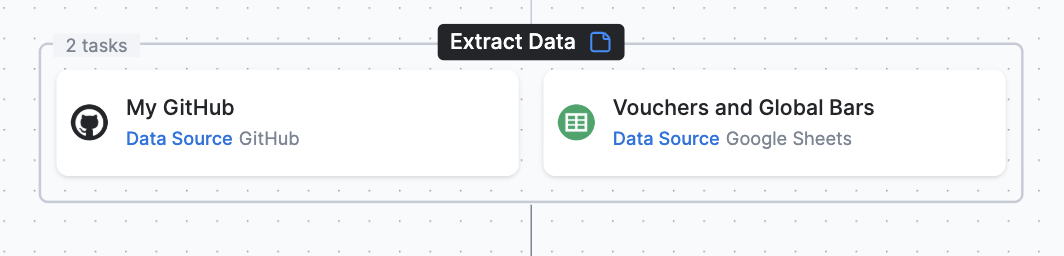
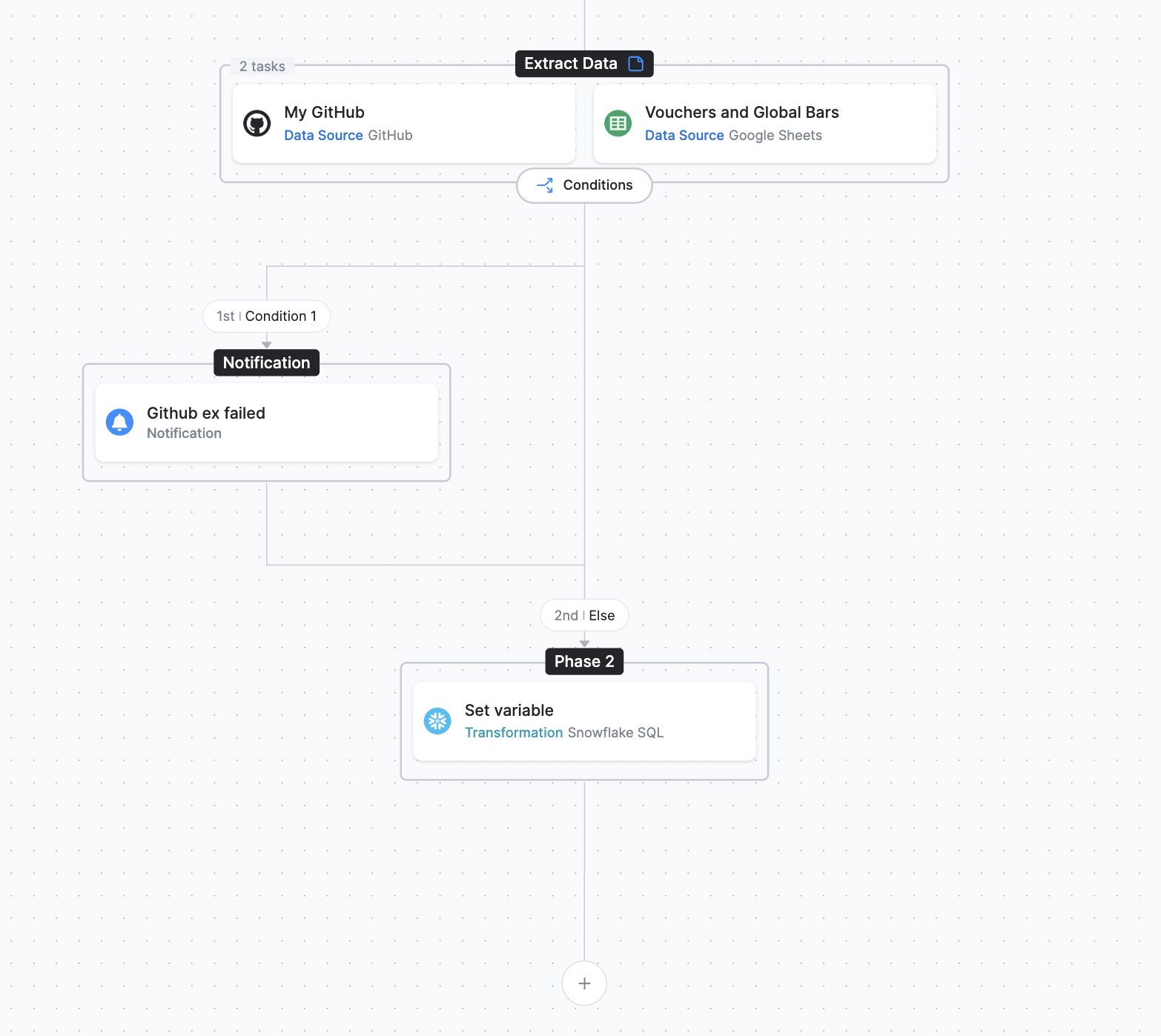
Section titled “Notify when a task fails”If you also want to be notified, branch on the failing task’s status and route the Flow through a phase with a Notification task. The example below starts from a first phase named Extract Data that contains two tasks: a GitHub extractor (My GitHub) and a Google Sheets extractor (Vouchers and Global Bars).
-
Start with the Extract Data phase containing the GitHub and Google Sheets extractor tasks.
-
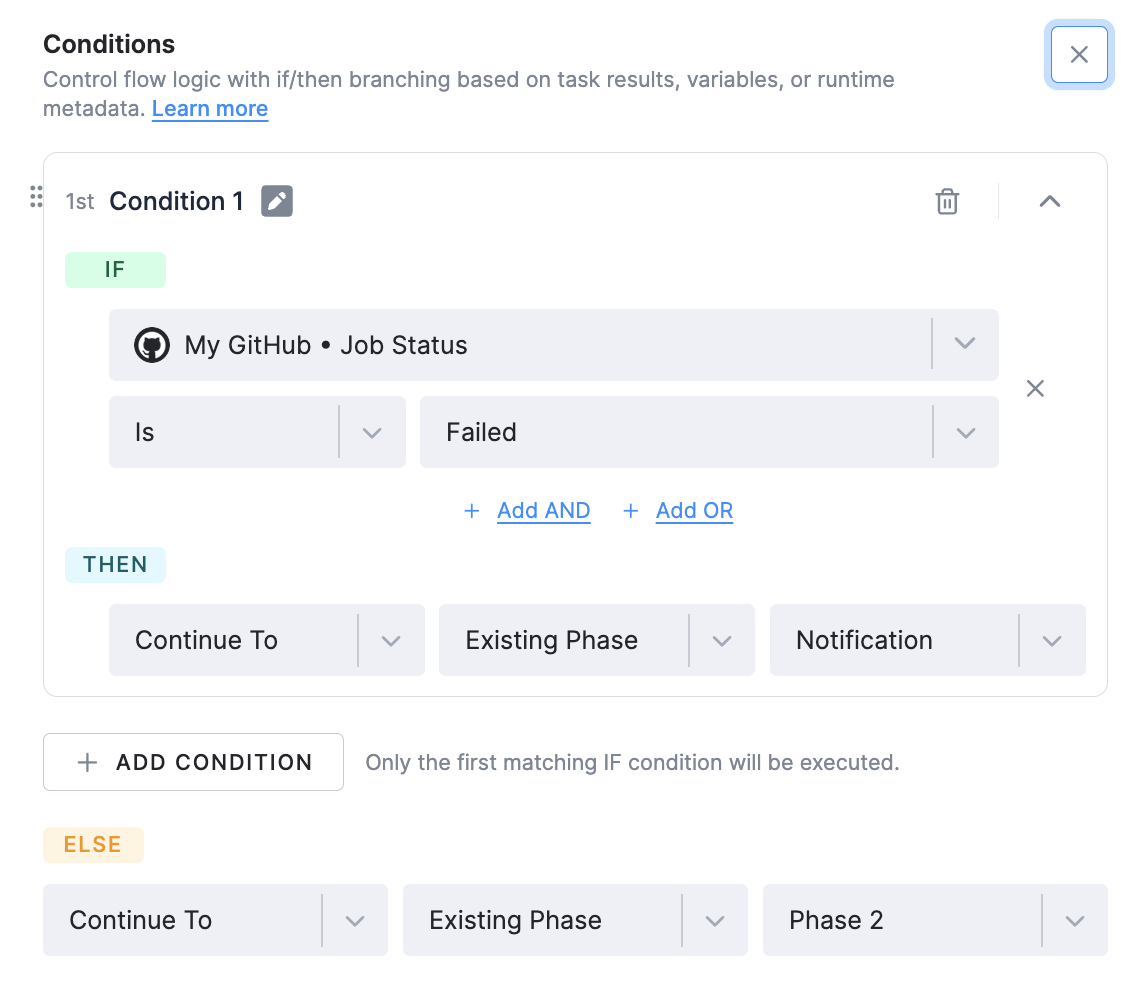
Add a condition to the GitHub extractor so that, when it finishes with an error, the Flow sends a notification and then continues. Set the condition to IF My GitHub Job Status Is Failed, THEN Continue To the Existing Phase Notification; in the ELSE branch, Continue To the Existing Phase Phase 2.
-
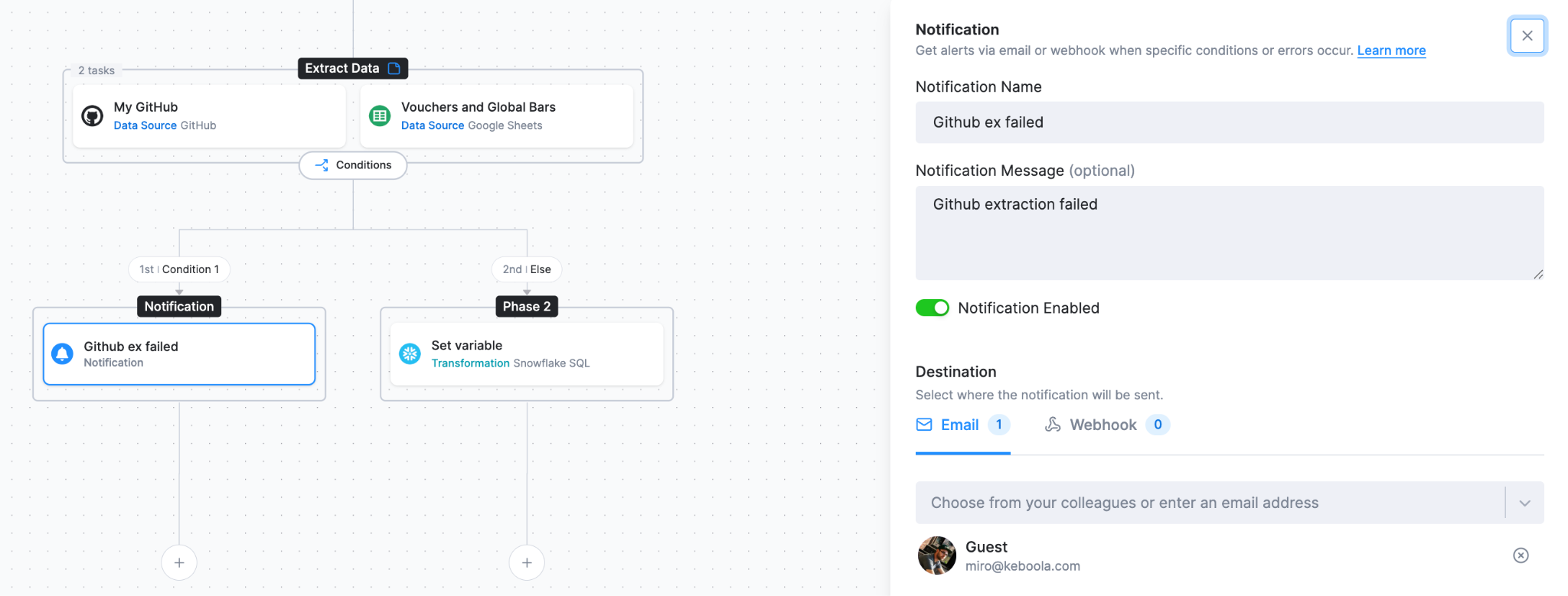
Add a Notification task to the Notification phase and configure it — for example, a name, a message, and an email destination.
-
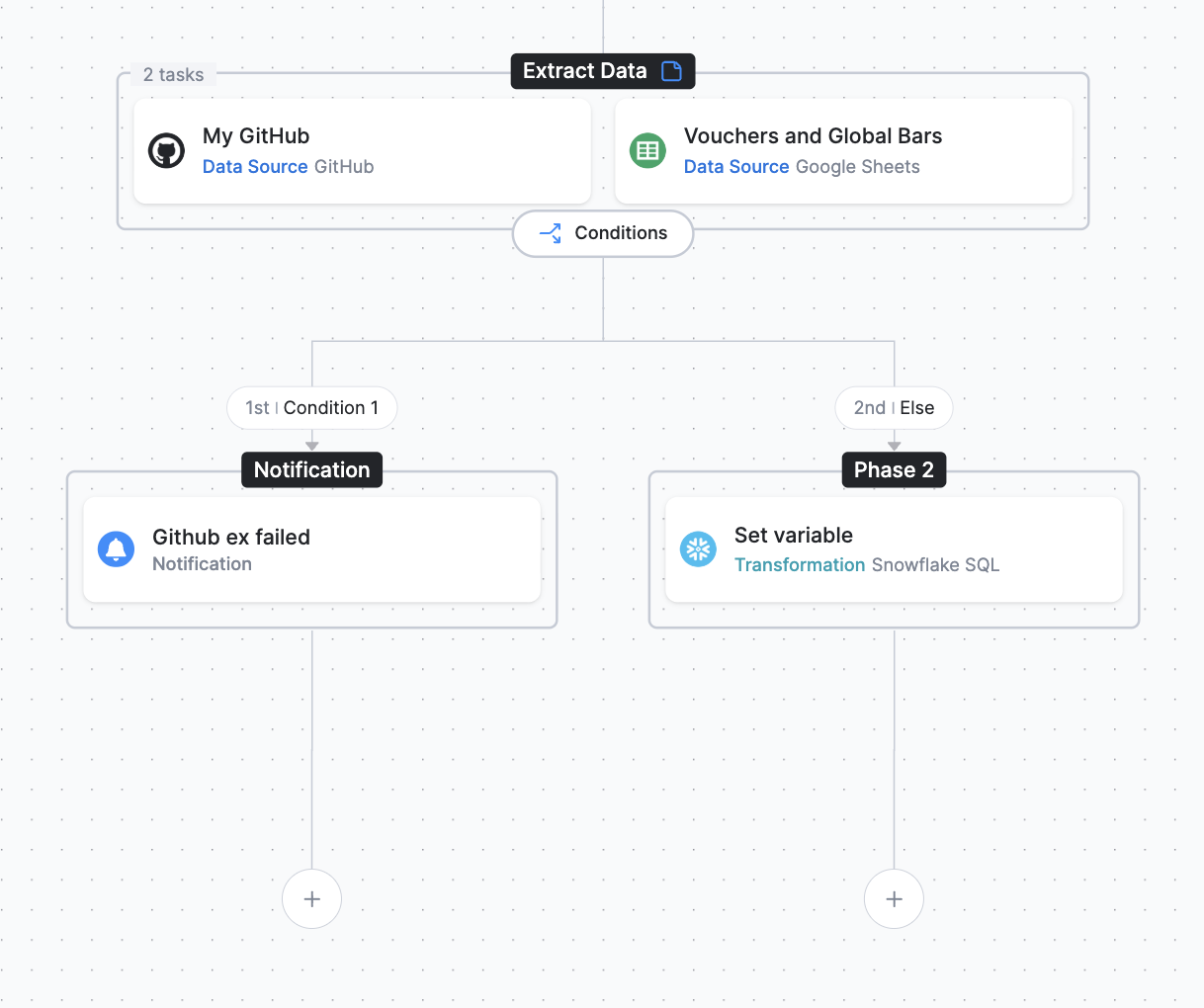
Add the task where the Flow continues to Phase 2. In this example it is a Snowflake transformation named Set variable.
-
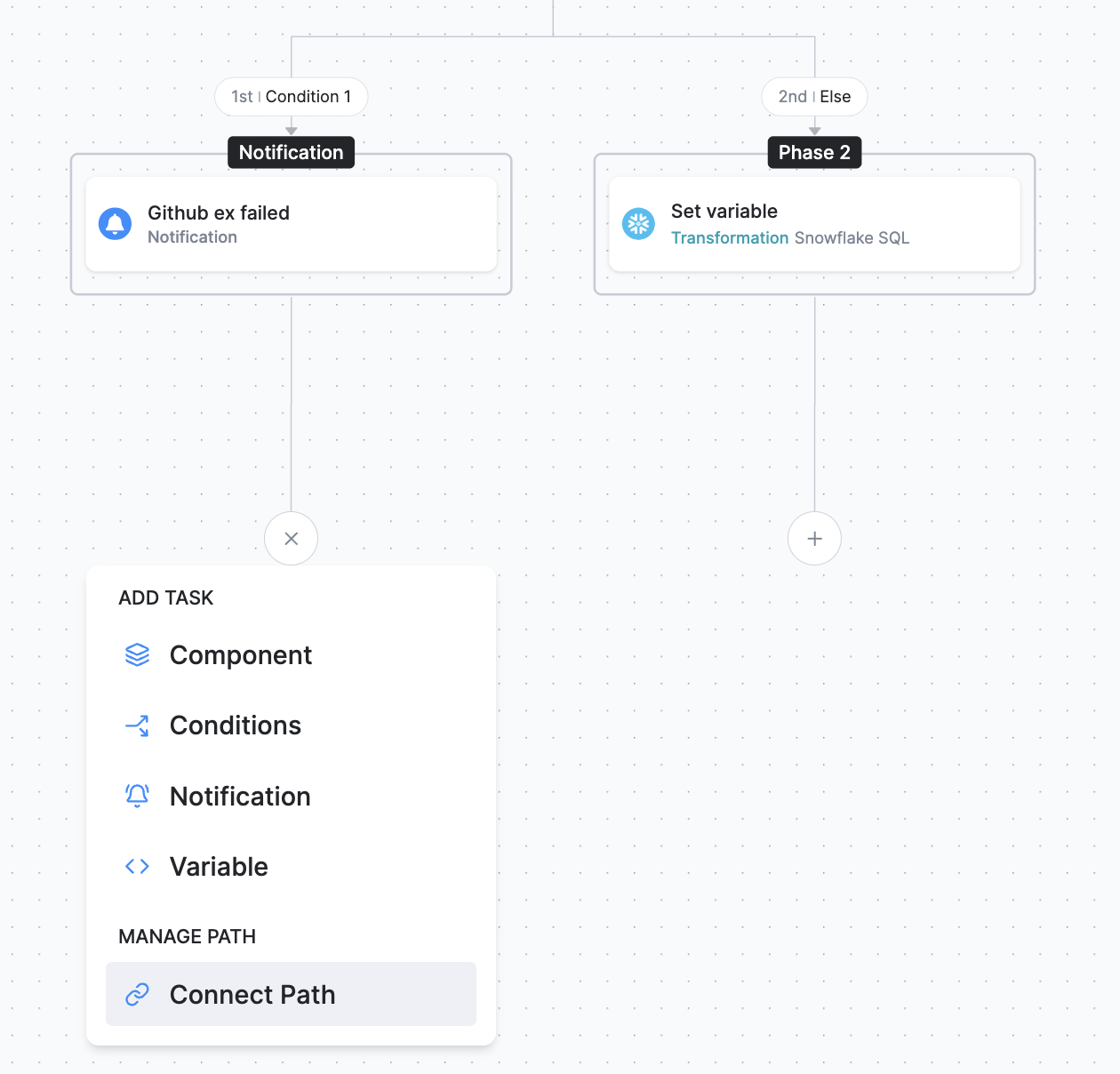
Connect the output of the Notification phase so it also continues to Phase 2. Click the plus icon (+) under the Notification phase and, under Manage Path, choose Connect Path. Then select Phase 2 from the drop-down.
-
The resulting Flow branches on the GitHub extractor failure into the Notification phase and rejoins Phase 2.
Was this page helpful?
Thank you for helping improve Keboola's documentation!