

DBeaver Installation Guide
Install the Keboola JDBC driver in DBeaver and connect to a Keboola project.
This guide walks you through installing the Keboola JDBC driver in DBeaver and connecting to a Keboola project.
Prerequisites
Section titled “Prerequisites”- DBeaver Community or PRO (any recent version with JDBC driver support)
- Java 11 or newer available to DBeaver (DBeaver ships its own JRE on most platforms)
- A Keboola Storage API token with workspace access — see Storage API token for how to create one
1. Download the driver
Section titled “1. Download the driver”Download the latest keboola-jdbc-driver-X.Y.Z.jar from the GitHub Releases page.
Save the jar somewhere stable on your machine — e.g. ~/keboola/keboola-jdbc-driver.jar.
2. Register the driver in DBeaver
Section titled “2. Register the driver in DBeaver”-
Open Database → Driver Manager.
-
Click New.
-
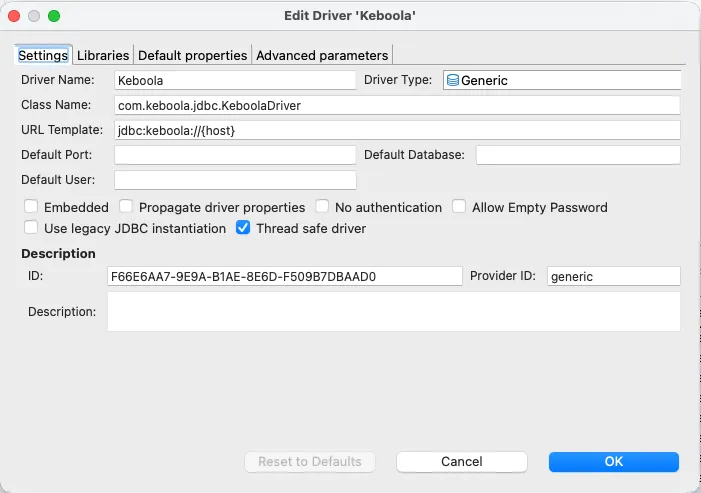
Fill in the driver details:
- Driver Name:
Keboola - Class Name:
com.keboola.jdbc.KeboolaDriver - URL Template:
jdbc:keboola://{host} - Default Port: (leave empty)
- Driver Name:
-
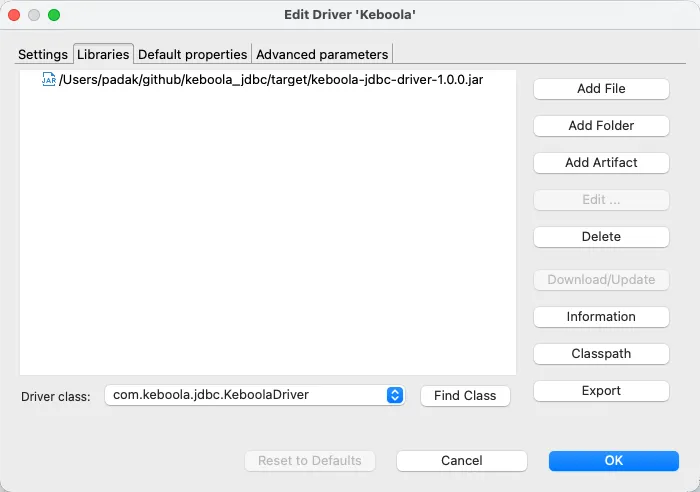
On the Libraries tab, click Add File and select the jar you downloaded.
-
Click Find Class to confirm DBeaver detects
com.keboola.jdbc.KeboolaDriver, then OK.
3. Create a connection
Section titled “3. Create a connection”-
Database → New Database Connection, then select Keboola from the driver list.
-
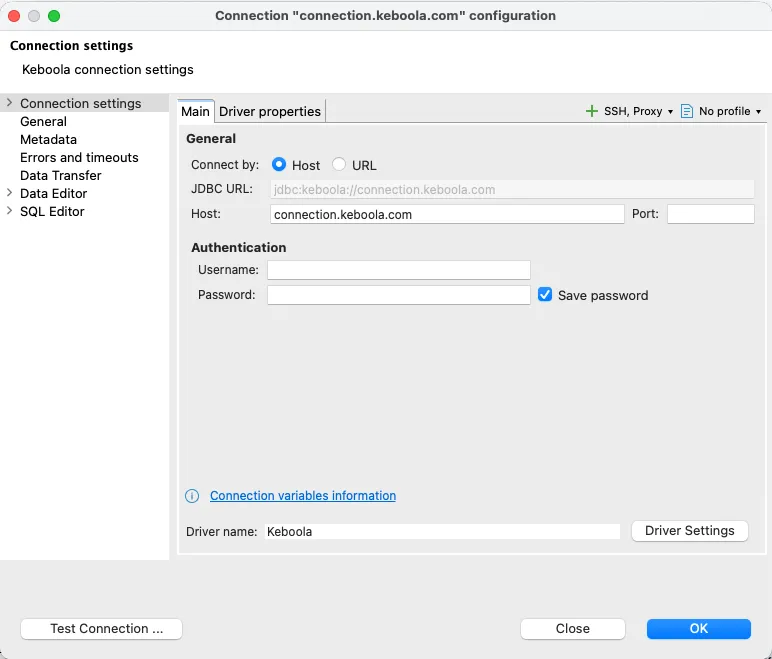
Fill in the connection form:
- JDBC URL:
jdbc:keboola://connection.keboola.com(replace the host with your Keboola stack, e.g.connection.eu-central-1.keboola.com) - User name: (leave empty)
- Password: (leave empty)
- JDBC URL:
-
Open Driver properties and add the token plus any optional overrides:
Property Required Description tokenyes Your Keboola Storage API token branchno Specific branch ID. Auto-detected (default branch) if omitted workspaceno Specific workspace ID. Newest workspace is auto-selected if omitted 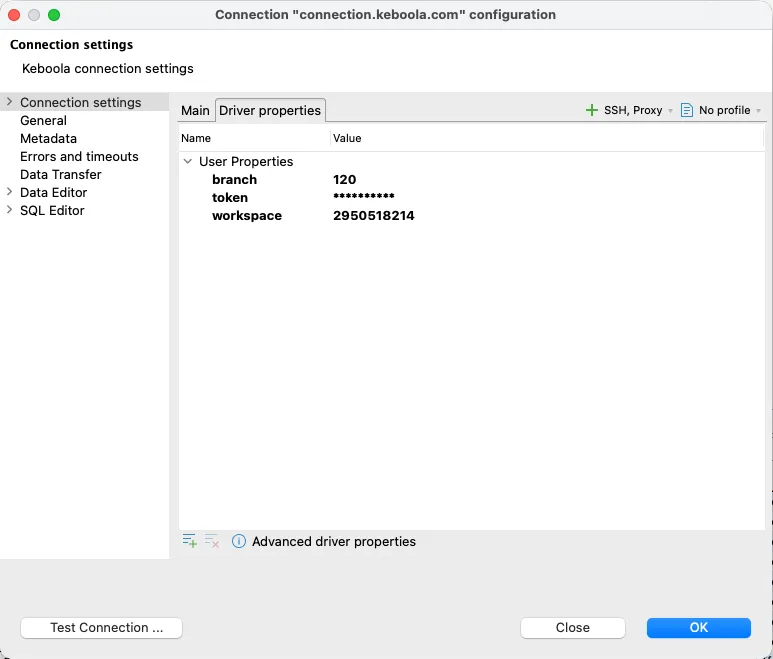
-
Click Test Connection. On success, Finish.
4. First query
Section titled “4. First query”Open a SQL editor against the new connection and run:
KEBOOLA HELP;
SELECT * FROM _keboola.buckets LIMIT 10;
KEBOOLA HELP lists every Keboola-specific command. _keboola.buckets is one of five virtual tables exposing platform metadata (components, events, jobs, tables, buckets).
Troubleshooting
Section titled “Troubleshooting”- “Property ‘token’ is required”the token wasn’t added under Driver properties. Re-open the connection settings and add it.
- Authentication or 403 errorsyour token is likely bucket-scoped. Verify by hitting
https://connection.keboola.com/v2/storage/tokens/verifywith headerX-StorageApi-Token: <your-token>; a bucket-scoped token will not see workspaces. Create a non-scoped token per the Storage API token section. - “No workspaces found”the project has no workspace yet. Open the project in Keboola UI and create a workspace (Transformations → Workspaces).
- Custom stackreplace the host in the JDBC URL with your stack hostname (e.g.
jdbc:keboola://connection.north-europe.azure.keboola.com).
Need Help?
Section titled “Need Help?”For further help, reach out via Keboola Support.