

Kai Pricing and Limits
How Kai consumes PPU credits, the free allowance for new organizations, where to track project spend, and how Organization Admins set project and per-user limits.
Kai consumes PPU credits (project power units), the same credits that run your transformations, extractors, and apps. Your contract rate applies to Kai exactly as it applies to a transformation hour.
New organizations start with a free allowance of 300 PPU.
Organization Admins can set up limits for your team to cap how much Kai can spend.
How Kai is billed
Section titled “How Kai is billed”Kai is billed for the work it does. Every time Kai finishes a reply, the PPU charge is derived from what that reply actually cost to produce — the language model tokens it consumed and the infrastructure it ran on.
A short question costs less than a full app build, in the same way that a five-minute query costs less than an hour of warehouse time.
You are not charged for opening the chat panel, for typing, or for a reply Kai cannot finish.
What one PPU buys
Section titled “What one PPU buys”Typical costs for common pieces of work. Each figure covers the whole conversation — every reply it took to get to the result — measured across Kai usage in mid-2026:
| Piece of work | Typical cost (PPU) | Per 1 PPU |
|---|---|---|
| Build or modify an app | 4.3 | 0.2 |
| Diagnose a failed job or pipeline | 1.4 | 0.7 |
| Answer an analytical question about your data | 1.2 | 0.8 |
| Debug and fix a broken transformation | 1.2 | 0.9 |
| Set up or check a data source | 1.0 | 1 |
| Trace data lineage | 0.9 | 1 |
| Get help understanding the platform | 0.8 | 1 |
| Write and run a SQL query | 0.4 | 3 |
| Explore project and storage structure | 0.4 | 3 |
| Create a SQL transformation | 0.3 | 3 |
The median conversation across all Kai traffic costs about 1.1 PPU, and simple work — writing a query, exploring a project, creating a transformation — runs three to four conversations per PPU.
These are medians, not a price list. A longer or more involved run of the same piece of work costs more, so treat the figures as indicative and expect your own numbers to vary.
Free allowance for new organizations
Section titled “Free allowance for new organizations”Every organization created on or after 21 September 2026, 10:45 UTC starts with a one-time 300 PPU of free Kai usage, granted automatically. It covers everything Kai charges for. Once it runs out, Kai consumes PPU credits as described above.
- Sharedall projects and users in the organization draw from the same 300 PPU.
- No expiryit does not reset each month, and creating another project does not add more.
- Never cut off part-waya reply that starts on the allowance finishes on it. If 1 PPU is left and the reply costs 3 PPU, all 3 are free, and charging starts with the next reply.
- New organizations onlyincluding an additional organization of an existing customer. Organizations created earlier do not qualify, even if they start using Kai later.
- Multi-tenant stackson a single-tenant stack, ask your Customer Success Manager what applies to you.
- Where to see itusage covered by the allowance shows as unbilled credits in the consumption dashboards. Kai does not show the remaining balance yet.
Tracking Kai spend
Section titled “Tracking Kai spend”Consumption dashboards
Section titled “Consumption dashboards”Kai spend appears as its own usage category, next to your extractors, transformations, and apps, in both consumption dashboards. That is where you see what Kai actually costs and how it trends over time.
- Project Consumption — a single project, available to everyone with access to it.
- Organization Usage — every project in the organization, available to organizations with an active contract.
User Usage in Chat
Section titled “User Usage in Chat”At 80% of their limit, an indicator appears in the user’s chat panel. A user sees their own usage as a percentage of their own limit. They do not see PPU figures, and they do not see other users’ usage.
When a limit is reached, Kai stops and reports which limit applied, the user’s own or the project budget.
Setting limits
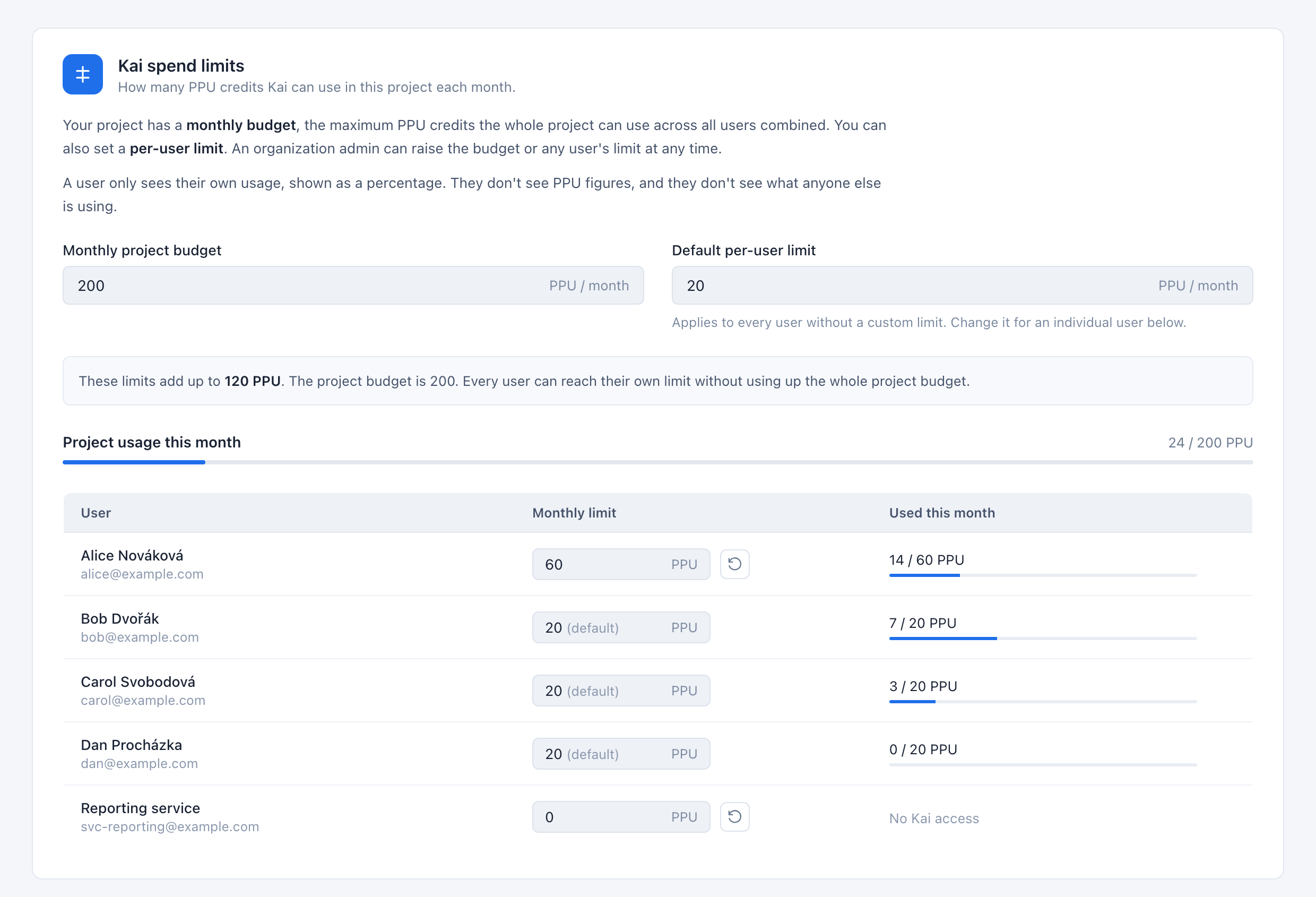
Section titled “Setting limits”Kai spend limits live in Settings → Kai Agent → Kai spend limits in the main Keboola navigation.
Organization Admins set up limits for all users in the project, and can raise either limit at any time. Other users can open this page and see which limits apply, but the fields are read-only for them.
Hierarchy of limits
Section titled “Hierarchy of limits”The project budget is the outer boundary. Every user’s limit sits inside it.
- Project budget — the most the whole project can spend in a month, shared across all users.
- Per-user limit — the most any one user can spend, and it can never exceed the project budget.
Kai stops for a user who hits their per-user limit. Kai stops for everyone once the project budget runs out, even for users below their own limit. Kai tells you which limit you reached.
A reply that has already started is never cut off part-way. Kai finishes it and stops at the next one, so hitting a limit never costs you work in progress.
This means a project can land slightly over its budget. With 1 PPU left of a 40 PPU budget, a reply that costs 3 PPU still runs to the end, and the project finishes the month on 42 PPU. The overspend is never more than the replies that were already running.
Setting the project budget
Section titled “Setting the project budget”To set the project budget:
- Go to Settings → Kai Agent in the main Keboola navigation.
- Open Kai spend limits.
- Enter a value in Monthly project budget.
Usage counts from the start of each calendar month, and the budget resets with it.
Setting per-user limits
Section titled “Setting per-user limits”The default per-user limit applies to everyone who does not have their own, and you change it by entering a new value in that field.
In the user table, adjust individual limits for heavy users rather than lifting the default for everyone, or set a limit to 0 to remove that user’s access to Kai. Use the reset button next to a limit to put that user back on the default.

Was this page helpful?
Thank you for helping improve Keboola's documentation!