

Data Streams Reference
This is the technical reference for the Data Streams feature—the underlying Stream API, column types, mapping templates, import conditions, and delivery guarantees. For the concept and the in-app setup, start with the Data Streams page.
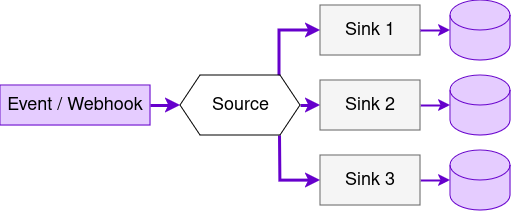
A source represents an endpoint for receiving events.
Sources are managed using the Stream API. See the full Stream API reference (opens in a new tab) and its OpenAPI specification (opens in a new tab).
Events are received via HTTP. Each source can be associated with up to 100 sinks, which represent mappings from event data to columns in a destination table. Data may be mapped using pre-defined mappings or a custom template. A branch may hold up to 100 sources, and a sink mapping up to 100 columns.
Columns
Section titled “Columns”| Field | Type | Description |
|---|---|---|
name | string | Name of the column. Names must be unique. |
type | string | The type of the column. Available types and their descriptions are listed below. |
The available column types are:
| Type | Description |
|---|---|
uuid | Unique event ID (UUID) |
datetime | Time of the event |
ip | IP of the event sender |
body | The unaltered event body |
headers | The unaltered request headers |
path | A field from the JSON object |
template | A custom mapping using a template language |
The same column types apply to both source types. For an OTLP source, the “event body” a mapping
sees is the single flattened record the service derives from each log record, metric data point, or
span — so body stores that record as JSON, and path/template address its fields. See
Fields Available to Column Mappings
for the field list per signal.
The path column type can be used to fetch a single field from a JSON object. Optionally, you can use rawString option to remove the quotes around a JSON string or the defaultValue option to define a value when the field doesn’t exist.
{ "type": "path", "name": "id", "path": "issue.id", "defaultValue": "undefined", "rawString": true}Template (Jsonnet)
Section titled “Template (Jsonnet)”The template column type currently supports the jsonnet templating language. The following jsonnet globals are available:
| Name | Description | Usage example | Example value |
|---|---|---|---|
Ip() | IP address of the client | Ip() | 127.0.0.1 |
Body() | Get the entire request body as an object. | Body() | { "a": "b" } |
Body(string) | Get a field from the request body by path. Fails if the field does not exist; in that case, the record will not be saved. | Body("deeply.nested.path") | 1000 |
Body(string, any) | Get a field from the request body by path, or a default value. | Body("deeply.nested.path", 2000) | 1000 |
BodyStr() | Get the entire request body as a string. | BodyStr() | "{\"a\":\"b\"}" |
Header() | Get all request headers. | Header() | { "Content-Type": "application/json" } |
Header(string) | Get the value of a single request header. Fails if the header does not exist; in that case, the record will not be saved. | Header("Content-Type") | "application/json" |
Header(string, string) | Get the value of a single request header or a default value. | Header("Content-Type", "application/json") | "application/json" |
HeaderStr() | Get the request headers as a string, each line containing one “header: value” pair. The lines are sorted alphabetically. | HeaderStr() | Content-Type: application/json |
Now() | Get the current UTC datetime as a string formatted using the default format. | Now() | "2023-01-14T08:04:05.123Z" |
Now(string) | Get the current UTC datetime as a string with the custom strftime (opens in a new tab)-compatible format. | Now("%Y-%m-%d") | 2023-01-14 |
Conditions
Section titled “Conditions”Incoming events are mapped to the schema defined in each sink, and each new row is appended to a CSV file on the local hard disk (local storage).
Data then moves in two steps, each with its own set of trigger conditions. Both sets are defined per sink and changed through the settings endpoints; within each set, whichever condition is met first triggers the step.
Step 1 — local storage → staging storage. Records are appended to a CSV file stored in your Keboola project. Keys are under storage.level.staging.upload.trigger:
| Condition | Key | Minimum | Maximum | Default |
|---|---|---|---|---|
| Interval | interval | 1 second | 30 minutes | 30 seconds |
| Size | size | 100 B | 50 MB | 5 MB |
| Record count | count | 1 | 10 million | 10 thousand |
Step 2 — staging storage → destination table (target storage). Keys are under storage.level.target.import.trigger:
| Condition | Key | Minimum | Maximum | Default |
|---|---|---|---|---|
| Interval | interval | 30 seconds | 24 hours | 1 minute |
| Size | size | 100 B | 500 MB | 50 MB |
| Record count | count | 1 | 10 million | 50 thousand |
The step-2 conditions are the ones the in-app Import conditions panel exposes, and they are what determines how soon a received event shows up in the table.
Changing these conditions will trigger an immediate import of waiting files, after which the stream will follow the updated conditions.
Create Sources and Sinks
Section titled “Create Sources and Sinks”Sources can be created using the POST /v1/branches/{branchId}/sources (opens in a new tab) endpoint.
If the sourceId or sinkId is omitted, it will be generated from the corresponding name field.
A source may be created without any sinks. The sinks can then be created separately using the POST /v1/branches/{branchId}/sources/{sourceId}/sinks (opens in a new tab) endpoint.
The requests are asynchronous and create a task that must be completed before the source or sink is ready to use. The task status can be checked using the GET /v1/tasks/{taskId} (opens in a new tab) endpoint.
Sink tables are created if they do not exist. If they already exist, the schema defined by sink.table.mapping.columns must match the existing schema. If the table schema is manually altered and it no longer matches, the import from staging storage to the table will fail. The data is kept in the staging storage for up to 7 days during which you can recover any failures.
Delete Sources and Sinks
Section titled “Delete Sources and Sinks”Sources may be deleted using the DELETE /v1/branches/{branchId}/sources/{sourceId} (opens in a new tab) endpoint. Sinks may be deleted using the DELETE /v1/branches/{branchId}/sources/{sourceId}/sinks/{sinkId} (opens in a new tab) endpoint.
Update Sources and Sinks
Section titled “Update Sources and Sinks”A source may be updated using the PATCH /v1/branches/{branchId}/sources/{sourceId} (opens in a new tab) endpoint. Sinks may be updated using the PATCH /v1/branches/{branchId}/sources/{sourceId}/sinks/{sinkId} (opens in a new tab) endpoint.
The UpdateSource endpoint updates the source’s name, description, and type. Sinks are not touched by it — they may only be updated separately.
If a sink’s table.tableId is updated, it is handled the same way as in the create operation. If the table exists, table.mapping.columns must match the existing table’s schema. If the table does not exist, it is created.
Source and Sink Settings
Section titled “Source and Sink Settings”The import conditions mentioned above can be accessed using the GET /v1/branches/{branchId}/sources/{sourceId}/settings (opens in a new tab) endpoint and changed using the PATCH /v1/branches/{branchId}/sources/{sourceId}/settings (opens in a new tab) endpoint.
Same settings also exist for a sink. Use the GET /v1/branches/{branchId}/sources/{sourceId}/sinks/{sinkId}/settings (opens in a new tab) endpoint and the PATCH /v1/branches/{branchId}/sources/{sourceId}/sinks/{sinkId}/settings (opens in a new tab) endpoint in that case.
Test a Payload
Section titled “Test a Payload”The in-app Payload test is backed by the POST /v1/branches/{branchId}/sources/{sourceId}/test (opens in a new tab) endpoint. Post a sample payload and the API renders it through every sink’s mapping, returning the destination tableId and the resulting column values for each sink — without storing anything. This is the fastest way to check a path or jsonnet template before pointing a real client at the source.
For an HTTP source, the request body is the raw payload a client would send, treated as a single record.
For an OTLP source, the body must be a single already-flattened OTLP record — not a protobuf batch and not the multi-record envelope an OTel SDK sends. The ?signal= query parameter (logs, metrics, or traces; defaults to logs) selects which signal the request simulates, and sinks whose allowedSignals filter rejects that signal are omitted from the result, exactly as they would be skipped during real ingestion.
Delivery Guarantees
Section titled “Delivery Guarantees”Depending on your use case, you may require different delivery guarantees for your stream. Follow the guidelines below to ensure the desired outcome.
At Most Once
Section titled “At Most Once”To ensure that no record is delivered twice, make sure the client doesn’t retry when sending the records. In this case, it’s beneficial to use the setting endpoints to set "storage.level.local.encoding.sync.wait" to false to increase throughput.
At Least Once
Section titled “At Least Once”To ensure that every record is delivered at least once, the client needs to implement retries when sending the records. Also, use the setting endpoints to confirm that "storage.level.local.encoding.sync.wait" is set to true (default behavior). Note that this setting guarantees that the record is written to the local disk.
Tokens
Section titled “Tokens”A token is generated for each source sink. These tokens have the minimum possible scope: write permission for the bucket in which the destination table is
stored, plus read access to all file uploads (staging storage is implemented with files). You can view them under Users & Settings → API Tokens in your project, or directly at
https://connection.keboola.com/admin/projects/<project-id>/tokens-settings (replace the host with your
stack’s if you are not on AWS US). Their description follows the format
[_internal] Stream Sink <source-id>/<sink-id>.
These tokens should not be deleted or refreshed manually. To refresh a token, you can disable and re-enable the sink.
Kafka Integration
Section titled “Kafka Integration”To connect Keboola with Apache Kafka® (opens in a new tab) and ingest data from Kafka topics via data streams, use the Kafka Connect HTTP Sink Connector to establish a communication channel between Kafka and Keboola.
The Kafka Connect HTTP Sink Connector acts as a bridge, seamlessly integrating Kafka with Keboola’s Data Stream HTTP API. Here’s a breakdown of the process:
- Data Consumption: The connector continuously reads data records from one or more Kafka topics.
- Batching: Events can be efficiently grouped based on a predefined maximum size (batch.max.size).
- API Interaction: Data is sent as a POST request in JSON format to Keboola’s Data Stream API URL.
Key Points to Remember
Section titled “Key Points to Remember”- This integration relies on the Kafka Connect HTTP Sink Connector, which requires configuration on the Kafka side.
- Data records from Kafka topics are transformed into strings before being sent to Keboola.
- The target Keboola API URL corresponds to the data stream created in Keboola.
- Only POST HTTP methods are supported for data ingestion.
Next Steps
Section titled “Next Steps”Was this page helpful?
Thank you for helping improve Keboola's documentation!