

Register and use an external dataset
Register a Snowflake schema or BigQuery dataset as an external dataset, keep it refreshed, query it in SQL, share it with other projects, or remove it.
These are the tasks around an external dataset: register a schema or dataset from your own warehouse, refresh it, query it, share it and remove it. Where Snowflake and BigQuery differ, pick your backend in a tab. The other tab groups on the page switch with it.
Register an external dataset
Section titled “Register an external dataset”Goal: make a schema or dataset of your warehouse available as a read-only bucket in the project.
An external dataset can be registered in the Storage of a project. The dialog will differ based on the backend you are using.
- Go to Storage > Register External Data.
- Fill in the name of the new bucket, database name, and schema name. Click Next Step.
- Keboola then shows
GRANTstatements for your database and schema. Log in to Snowflake (for example, open a worksheet) with a role that can grantUSAGEon the database and schema andSELECTon all and future tables and views in the schema, and run the statements. - Once access has been granted, click Register Dataset to start using it.
- Go to Storage > Register External Data.
- Fill in the name of the new dataset and dataset name. Click Next Step.
- Keboola then shows how to share the dataset with it through Analytics Hub. In your GCP project, open BigQuery → Analytics Hub (enable the Analytics Hub API if needed). Create an exchange in the same region or multi-region as the Keboola project, using the display name the dialog gives, and add the Keboola service account the dialog shows as a subscriber. In that exchange, create a listing whose shared dataset is the dataset you are registering. Open the listing detail, copy its URL from the browser and paste it into the dialog’s URL field.
- Once access has been granted, click Register Dataset to start using it.
External tables in the dataset work only when they are BigLake tables. See BigLake tables.
Result: When you register an external dataset, we analyze the metadata of the objects in it and register all tables and views as tables in the Keboola Storage bucket.
Refresh an external dataset
Section titled “Refresh an external dataset”Goal: make tables or views that were added after the registration visible in Keboola.
If you later add additional tables or views, you must manually refresh the Storage bucket using the Refresh action in the bucket detail to make them visible in Keboola.
-
Open the bucket detail of the external dataset.
-
Use the Refresh action.
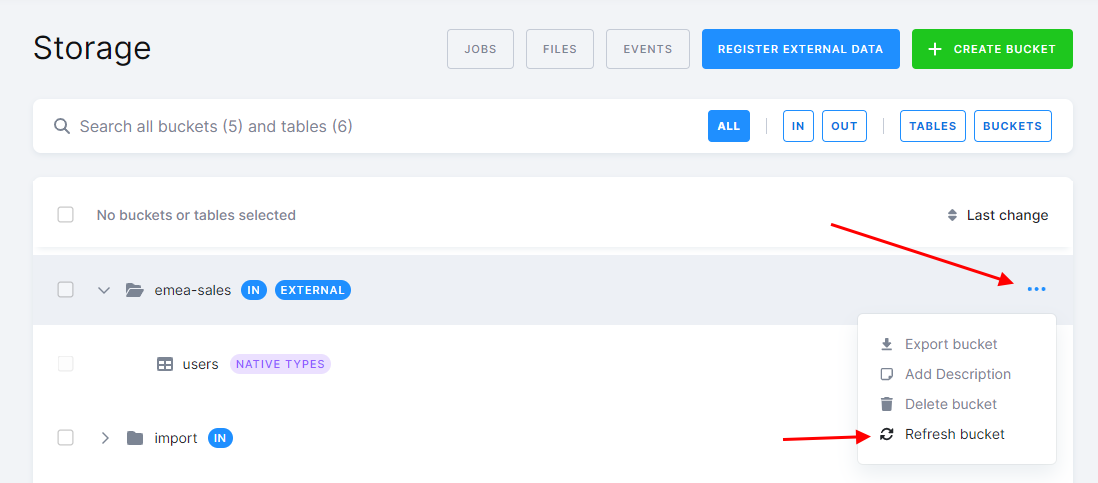
Result: The added tables and views are visible in Keboola. For table and column descriptions, see Using an external dataset.
Refresh on a schedule
Section titled “Refresh on a schedule”Goal: keep the bucket in sync with the source schema without refreshing it by hand.
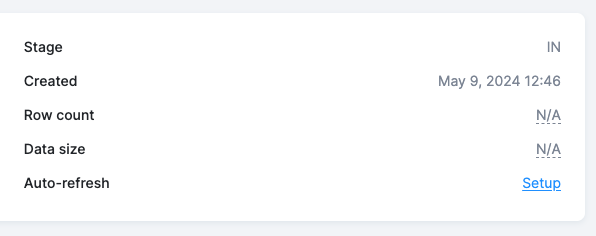
You can enable Auto-refresh for external buckets using a cron scheduler. Auto-refresh ensures that your external dataset remains synced with the source schema and prevents pipelines from failing due to outdated metadata.
-
To configure Auto-refresh, open the bucket detail and click Setup next to Auto-refresh.
-
In Auto-refresh Settings, choose how often under Every (for example Day) and the time under at (Hours, Minutes). Times are in UTC; Schedule Preview lists the next runs. Click Add. The schedule appears under Scheduled Tasks, where Delete removes it.
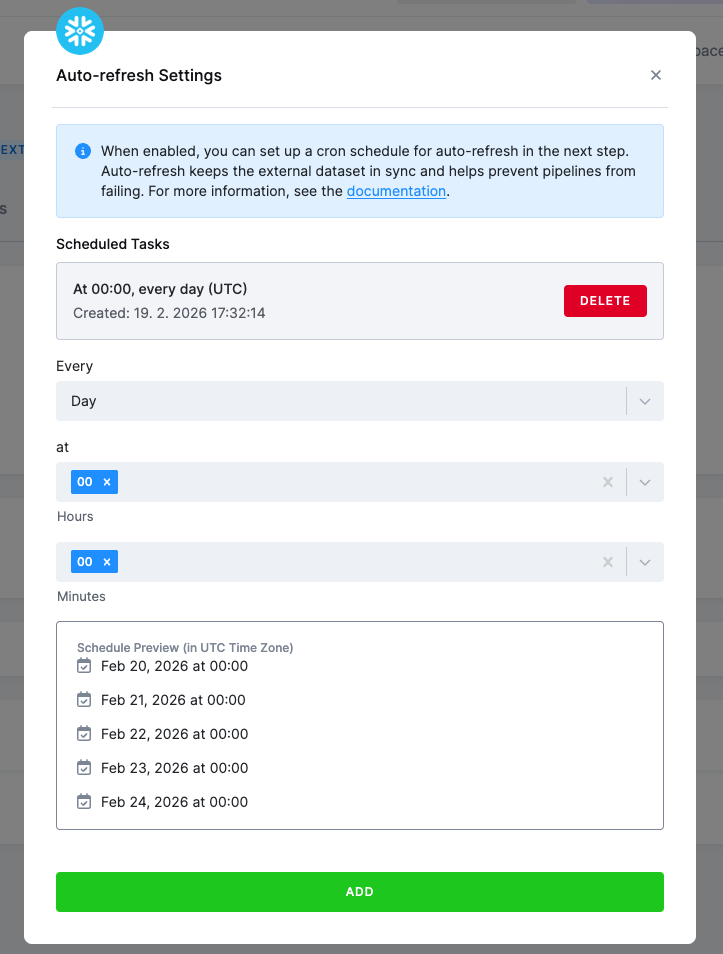
Result: The bucket metadata is refreshed automatically on the schedule you set.
Keep read-only input mapping access to recreated tables
Section titled “Keep read-only input mapping access to recreated tables”Goal: keep the read-only input mapping able to read a table that was deleted and created again in the source schema.
A refresh of the bucket restores the access each time (see Limitations). To permanently resolve this issue, you can manually grant the read-only input mapping role future access to your tables and views:
-
Run these statements in Snowflake:
GRANT SELECT ON FUTURE TABLES IN SCHEMA "REPORTING"."sales_schema" TO ROLE KEBOOLA_8_RO;GRANT SELECT ON FUTURE VIEWS IN SCHEMA "REPORTING"."sales_schema" TO ROLE KEBOOLA_8_RO;GRANT SELECT ON FUTURE EXTERNAL TABLES IN SCHEMA "REPORTING"."sales_schema" TO ROLE KEBOOLA_8_RO; -
Replace
"REPORTING"."sales_schema"with your database and schema, andKEBOOLA_8_ROwith the read-only role of your project. Ensure the role name follows the patternKEBOOLA_<PROJECT_ID>_ROgiven in Read-only access to project storage and is suffixed with_RO.
Result: The read-only role can read tables and views created in the schema later, so a recreated table stays readable.
Query an external dataset in a SQL transformation
Section titled “Query an external dataset in a SQL transformation”Goal: read a table of an external dataset in a transformation.
External datasets can be used in an input mapping (see Using an external dataset). You can also reference them in your transformation by a fully qualified name, as in this example.
In the following example, it is assumed that you’ve created an external dataset called users_reporting that references the sales_emea schema in the database
REPORTING. The schema contains a table called users. Now you want to create a new table MQL_USERS that contains only users sourced from
marketing-qualified leads. You can do that using the following SQL:
CREATE TABLE "MQL_USERS" AS SELECT *FROM "REPORTING"."sales_emea"."users"WHERE "source" = 'mql';For BigQuery, an external dataset is mapped to an actual dataset, users_reporting (the name you filled in the dialog), in your project—in this case, project sapi-9752. You can reference the contents of the dataset in your SQL transformation by the dataset name and the table name:
CREATE TABLE `MQL_USERS` AS SELECT *FROM `users_reporting`.`users`WHERE `source` = "mql";Result: The transformation creates the table MQL_USERS from the rows it reads in the external dataset.
Share an external dataset
Section titled “Share an external dataset”Goal: let other projects read the external dataset.
It is possible to share an external dataset using the same process as any other Storage bucket.
Sharing a Snowflake external dataset works out of the box — no additional configuration is required beyond the standard bucket sharing flow.
Sharing a BigQuery external dataset is supported, but requires additional IAM permissions to be granted on your Analytics Hub listing. This is because BigQuery Analytics Hub does not allow re-sharing a linked (subscribed) dataset — instead, the target project must subscribe directly to your original listing. Keboola handles this automatically, but needs permission to grant subscriber access on your behalf.
To enable sharing, grant one of the following to the Keboola service account on your Analytics Hub listing, in addition to the roles/analyticshub.subscriber already required for registration:
Option 1 — Custom role (recommended, least privilege): Create a custom IAM role in your GCP project with exactly these two permissions:
analyticshub.listings.getIamPolicyanalyticshub.listings.setIamPolicy
The scope of this custom role depends on where your external datasets live:
- If all external datasets come from a single GCP project, create the custom role at the project level and grant it to the Keboola service account on that project.
- If external datasets come from multiple GCP projects across your organization, create the custom role at the organization level so it can be applied across projects.
Option 2 — Built-in roles/analyticshub.listingAdmin (simpler, broader permissions):
Grant the built-in roles/analyticshub.listingAdmin role to the Keboola service account on your listing. This role includes the required permissions, but also covers additional capabilities (such as updating or deleting the listing) that Keboola does not use.
Result: Once the bucket is shared, the refresh operation is only available in the source project (the project where the external dataset was registered). Currently, it is possible to share entire buckets, not specific tables within them.
Remove an external dataset
Section titled “Remove an external dataset”Goal: take the external dataset out of the project.
Removing an external dataset is as simple as removing any other Storage bucket.
- In Storage, open the ⋯ menu of the bucket and choose Delete bucket, or call the Storage API:
DELETE /v2/storage/buckets/{bucket_id}.
Result: The Storage bucket will be removed from the project, but the schema in the database will remain untouched. Any rights that you have granted to Keboola during the registration will be revoked.
If you wish to remove the schema, you must do so manually in your warehouse.
Was this page helpful?
Thank you for helping improve Keboola's documentation!