 USER DOCUMENTATION
Organizations
Keboola projects are grouped into organizations. Each organization is assigned to a maintainer (either Keboola or Keboola Partner), who is also primarily responsible for L1 support unless agreed otherwise. Keboola projects, organizations, and maintainers are therefore organized into a hierarchy:
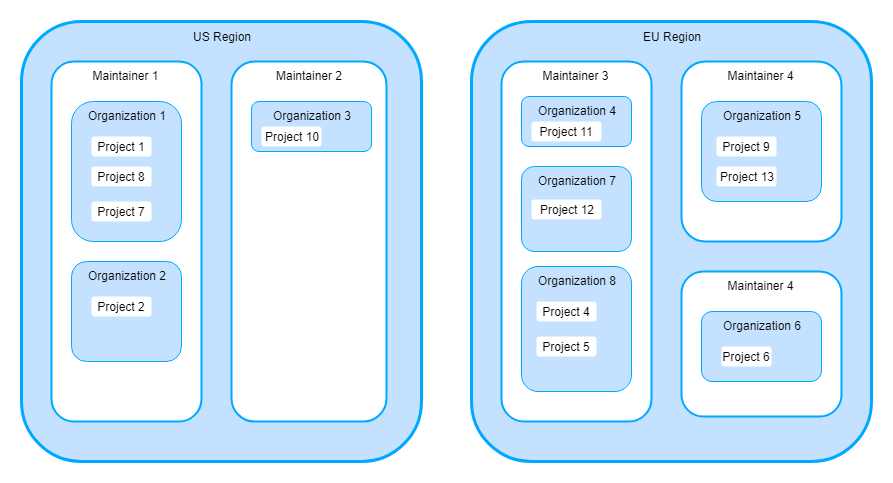
Although projects, organizations, and maintainers form a hierarchy, their users do not. Each unit has a completely independent set of users. That means organization users are not automatically users of the projects within organizations and – vice-versa – project users are not automatically users of the organization. This distinction is important, for example, when sharing buckets.
Depending on your contract details and permissions, the Organizations feature may or may not be available to you.
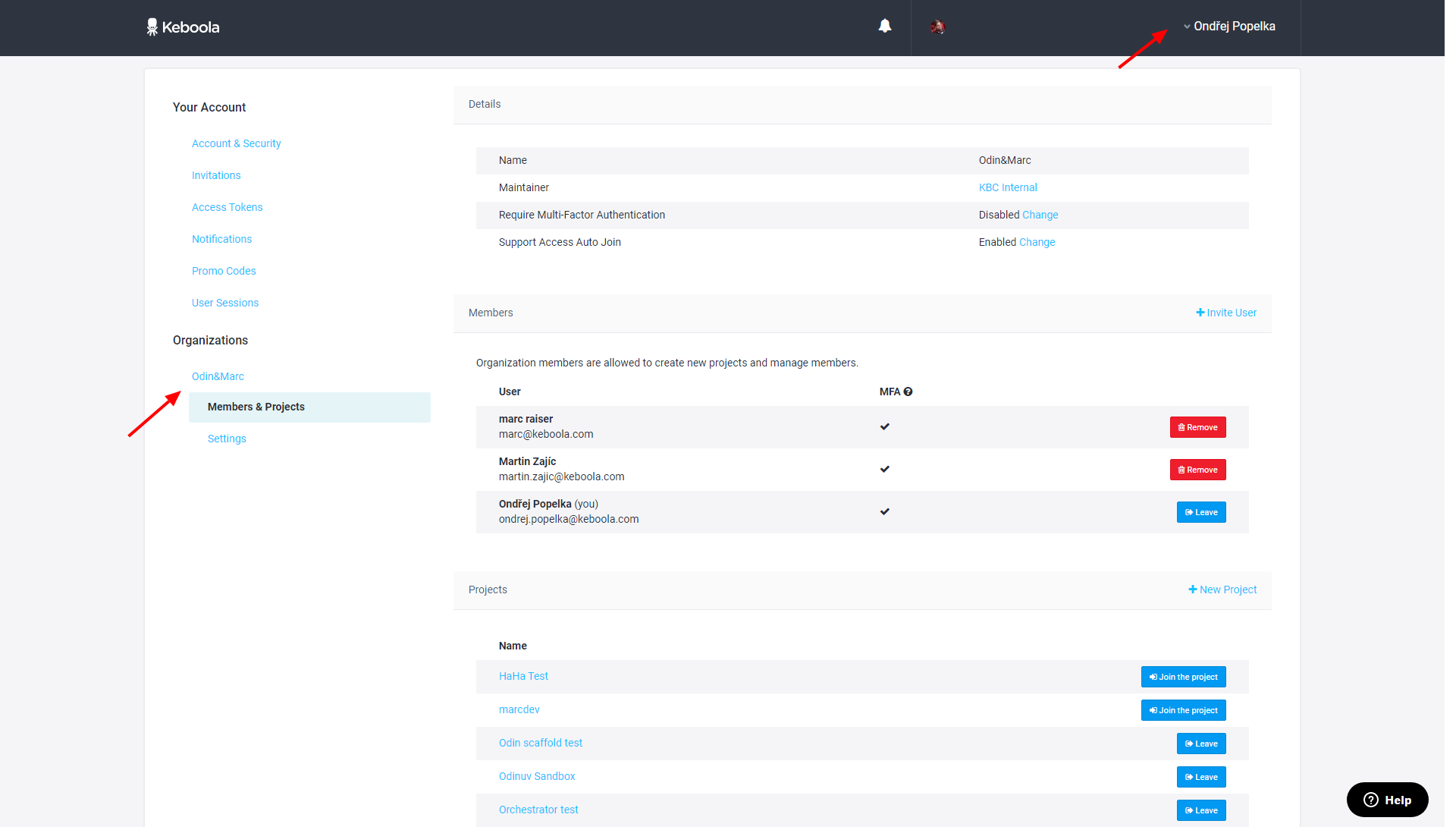
Note: If you do not see the Organizations section in your account settings,
you are not a member of any organization.
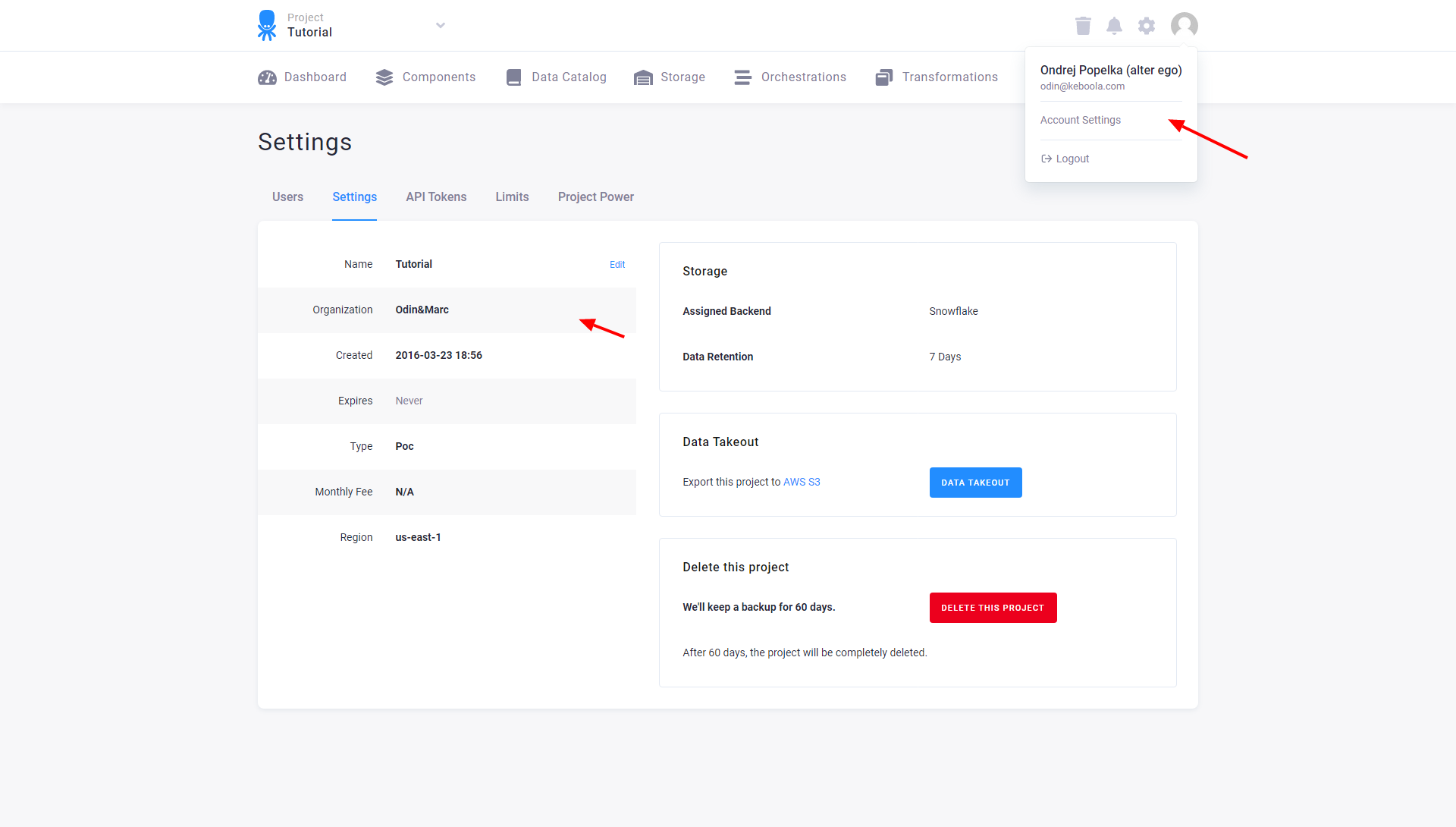
To see the organization a project is assigned to, go to Users & Settings — the tab
Settings.
To see all organizations you are a member of, go to Account Settings.
Organization Admins
An organization admin (also referred to as an organization member) is a user who has been explicitly added to an organization’s membership list. This role is distinct from project-level roles and provides elevated permissions across all projects within the organization.
What Organization Admins Can Do
Organization admins have the following capabilities:
- Project Access — Join and leave any project within the organization without requiring an invitation. This makes it easy for organization admins to provide support or oversight across multiple projects.
- Create New Projects — Set up new Keboola projects within the organization.
- Manage Data Sharing — Share and manage shared buckets across projects in the organization. Organization admins can share buckets to all organization members and manage bucket sharing settings.
- Manage Organization Members — Invite new members to the organization and remove existing members.
- Organization Settings — Configure organization-wide settings such as Auto Join and MFA requirements.
- Billing Access — View and edit billing details for the organization.
- Support Access Control — Allow or restrict Keboola Support from joining projects in the organization.
- Development Branches — In projects with protected default branches, organization admins have additional permissions to manage development branches even without a specific project role.
Organization Admin vs. Project Roles
It is important to understand that organization admin status is separate from project user roles. Being an organization admin does not automatically grant you a role within individual projects. However, organization admins can join any project in the organization at will.
When working within a project, your permissions are determined by your project role (Admin, Share, Guest, etc.), not your organization admin status. The organization admin role primarily provides the ability to access projects and manage organization-level resources like shared buckets.
Who Should Be an Organization Admin
We recommend keeping the number of organization admins small (typically 2-4 people) and limiting this role to:
- Data platform administrators responsible for managing the Keboola environment
- Team leads who need to oversee multiple projects
- Users who need to manage data sharing across projects
For regular project work, users should be added directly to the relevant projects with appropriate project roles rather than being made organization admins.
Manage Members
All organization members are full members and as such can add and remove other members. As mentioned above, being a member of a project in an organization does not make you automatically a member of the organization. That means each organization member has to be added or removed manually. The same goes for maintainers.
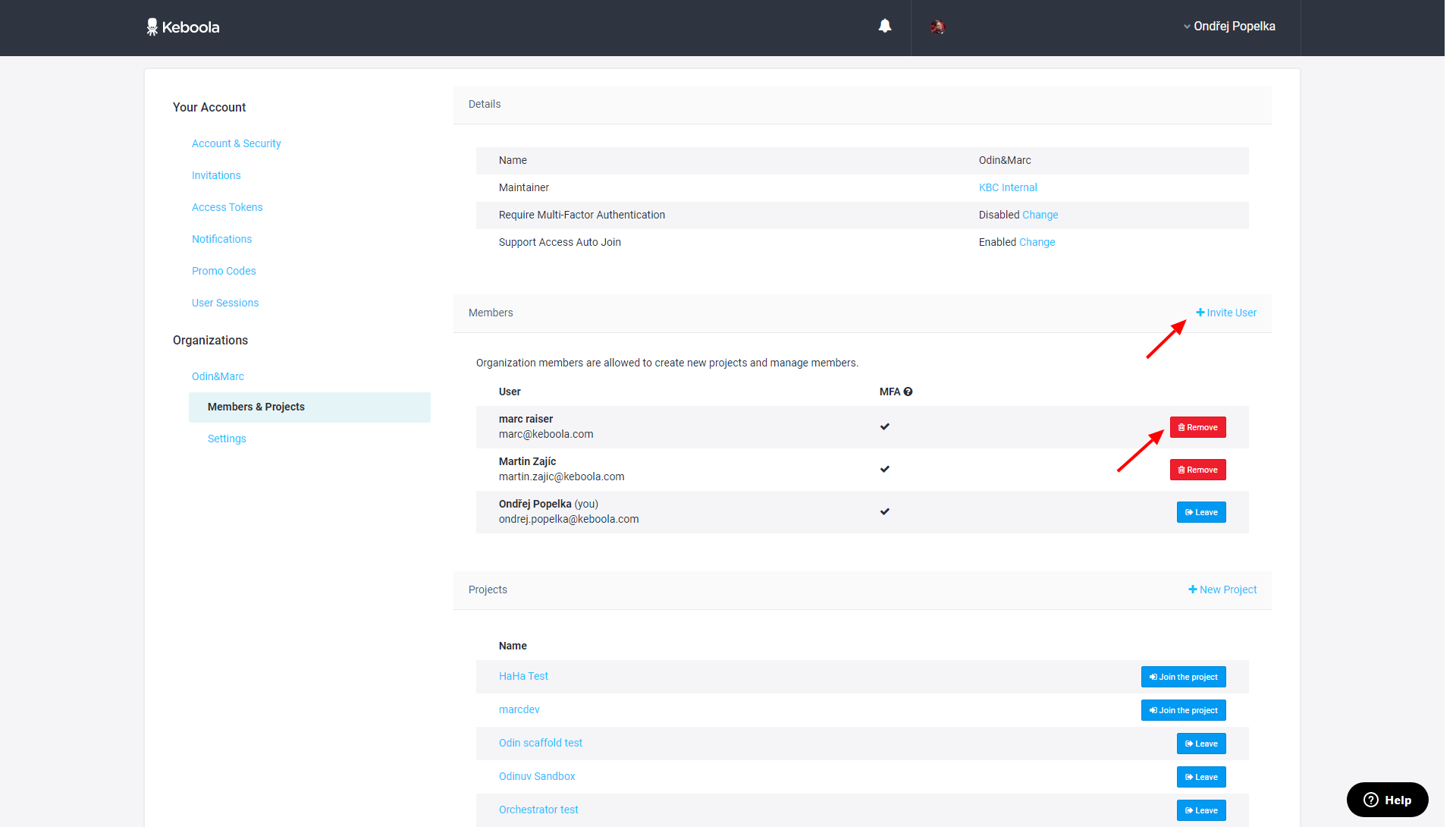
Newly added organization members get an email confirmation, and if without a Keboola account, they are invited to create one. Removed members receive an email notification.
Apart from adding and removing other members, each organization member is also allowed to do the following:
- Leave the organization; there is no way back without someone else’s invitation.
- Leave and re-enter all existing projects in the organization.
- View and edit billing details.
- Manage shared buckets.
- Create new projects.
- Change organization settings.
- Allow Keboola Support to join your projects.
Manage Projects
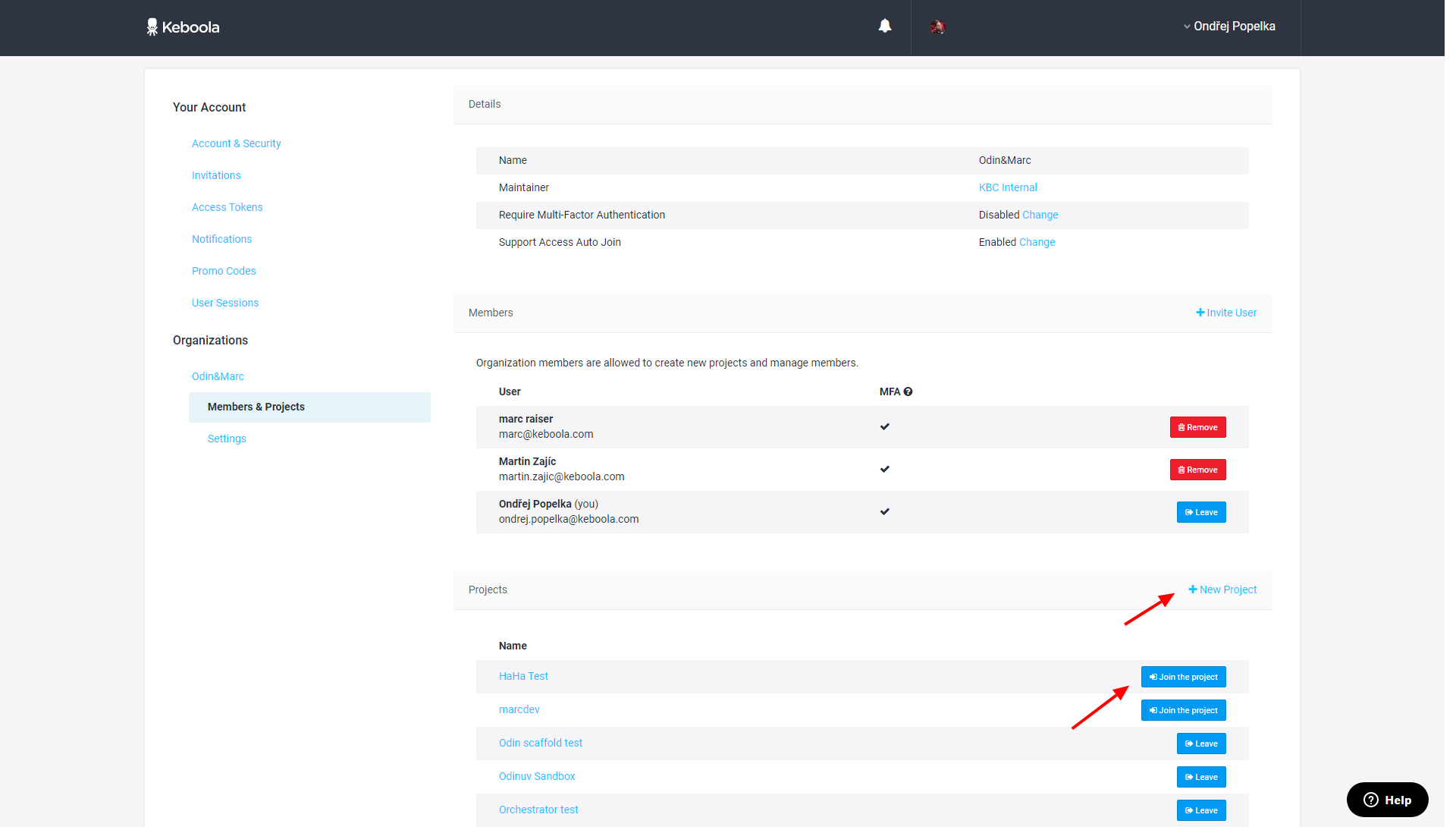
To create a new project, click the New Project button, enter the project’s name and select a project template. Project templates differ mainly in the project expiration time. Some may be subject to billing.
Organization Settings
Auto Join
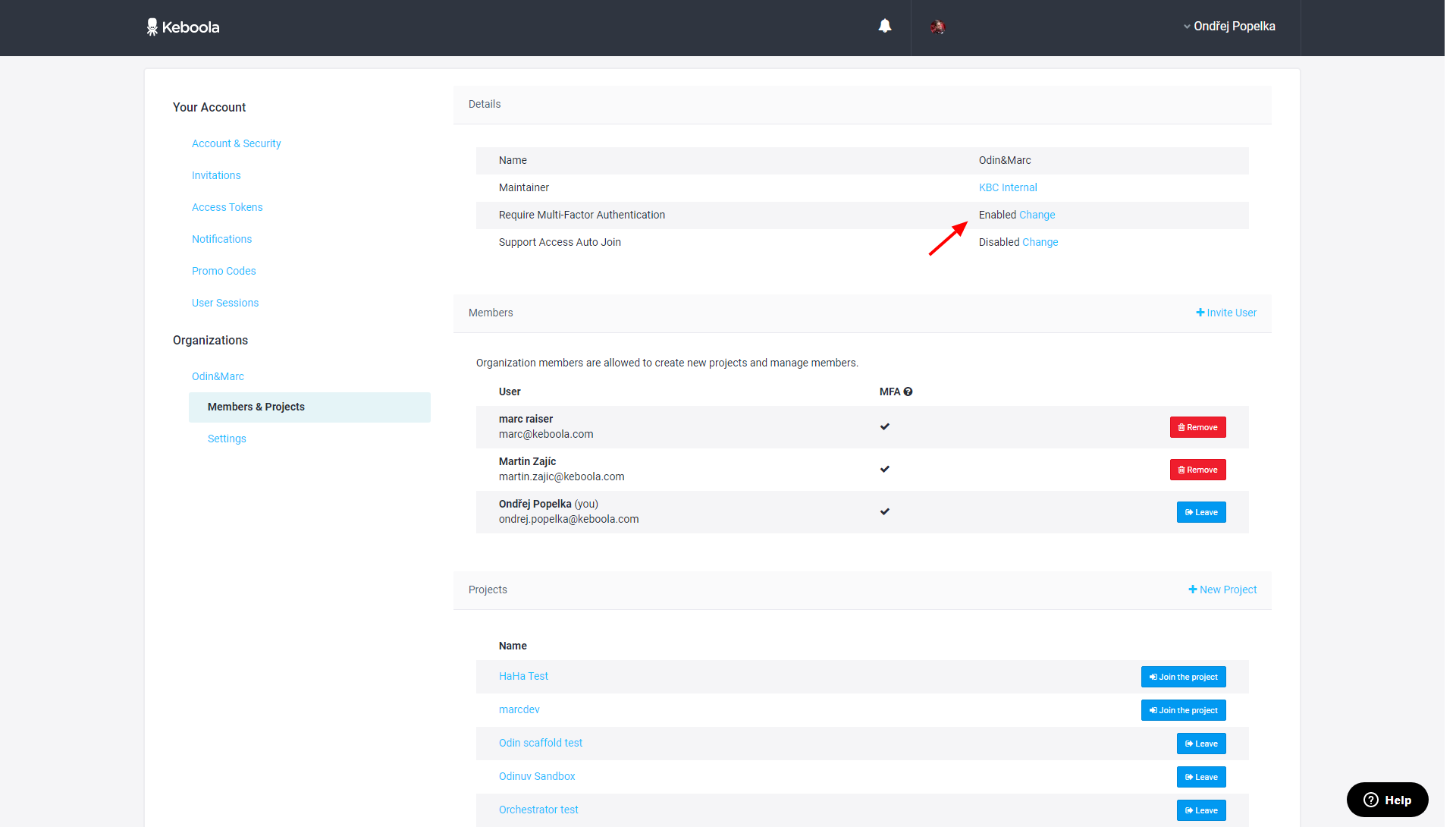
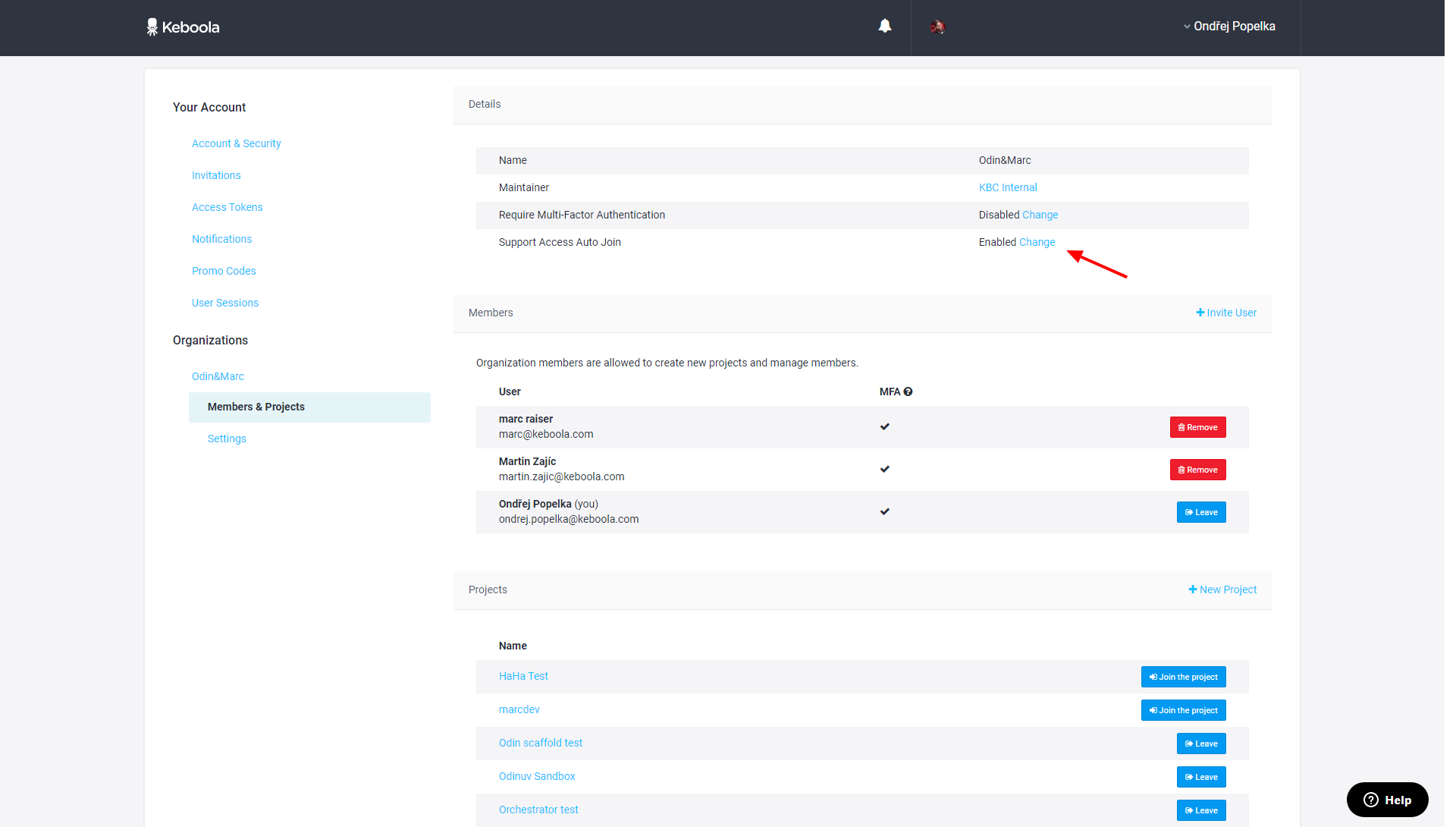
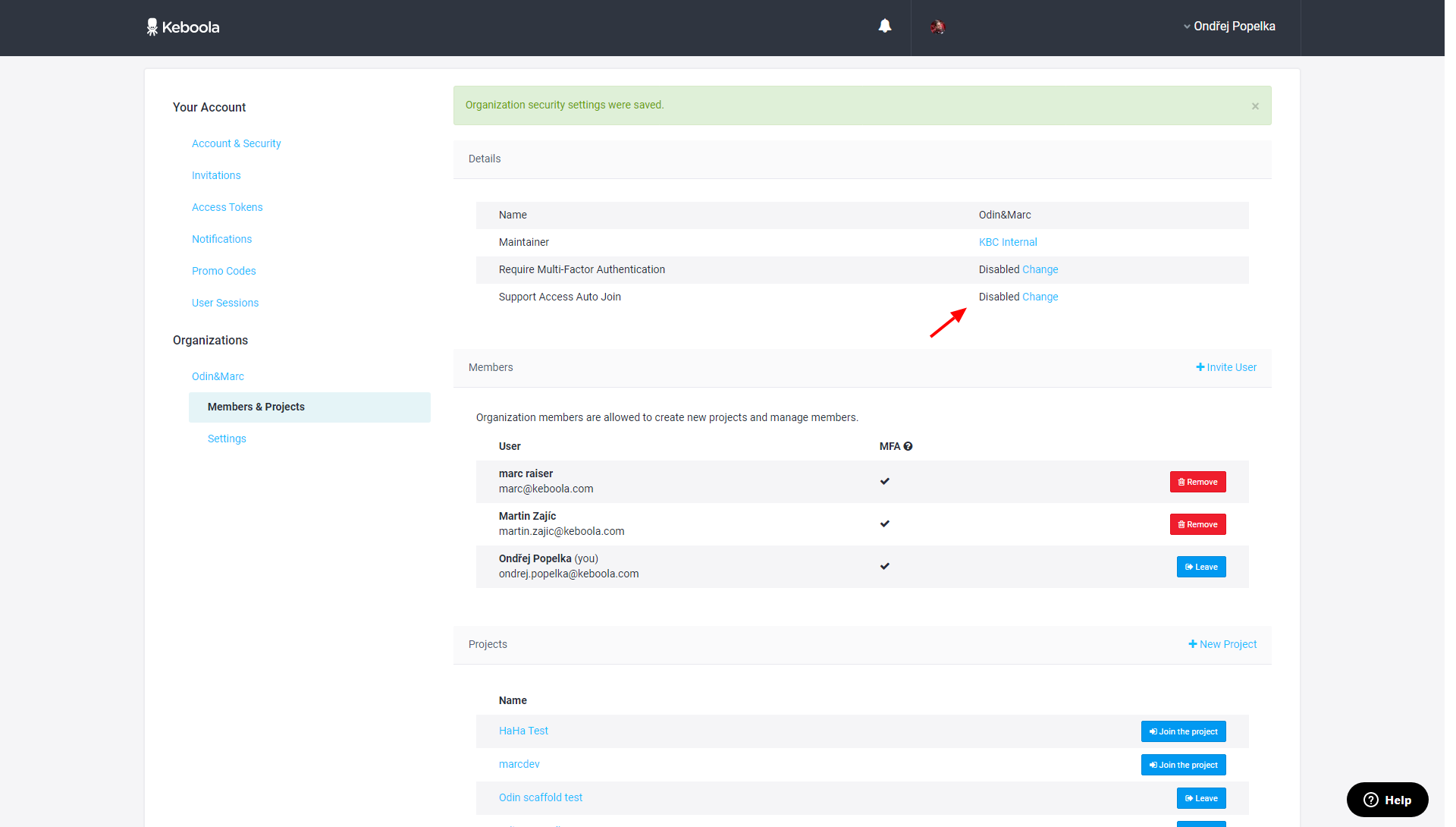
Some organizations may prefer to explicitly approve access to their project by the support team. To disable Auto Join and require approval for support accounts, click the Change link to modify the settings:
Uncheck the Auto Join checkbox and Update the settings.
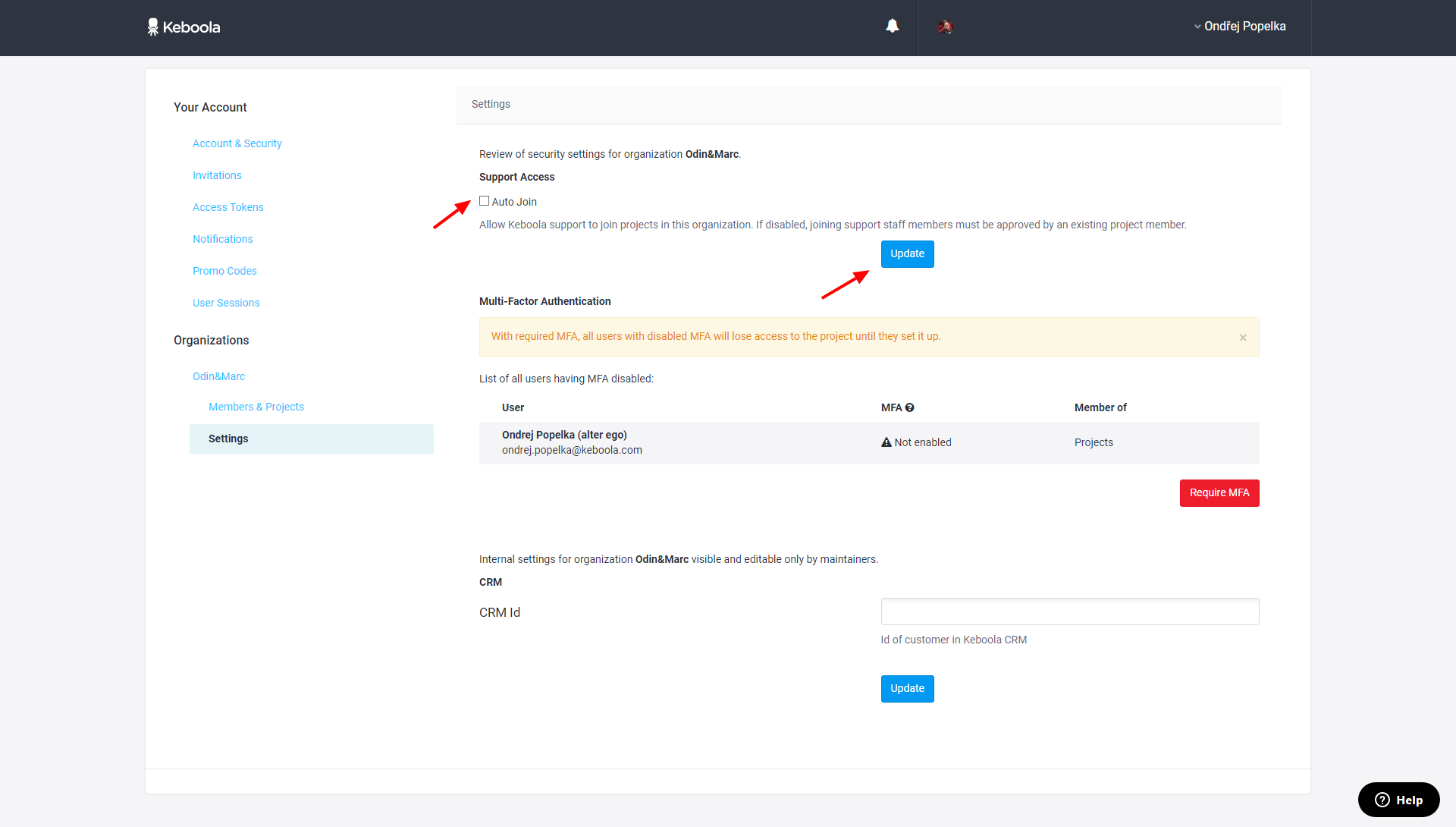
The description for support access will reflect the current setting.
Require MFA
It is possible to set the Multi-factor Authentication (MFA) requirement for all projects in the organization. When MFA is required for an entire organization, users without MFA enabled can still log in to Keboola, but they cannot access any projects in the organization. The list of users without MFA is shown when enabling the MFA requirement for the entire organization.
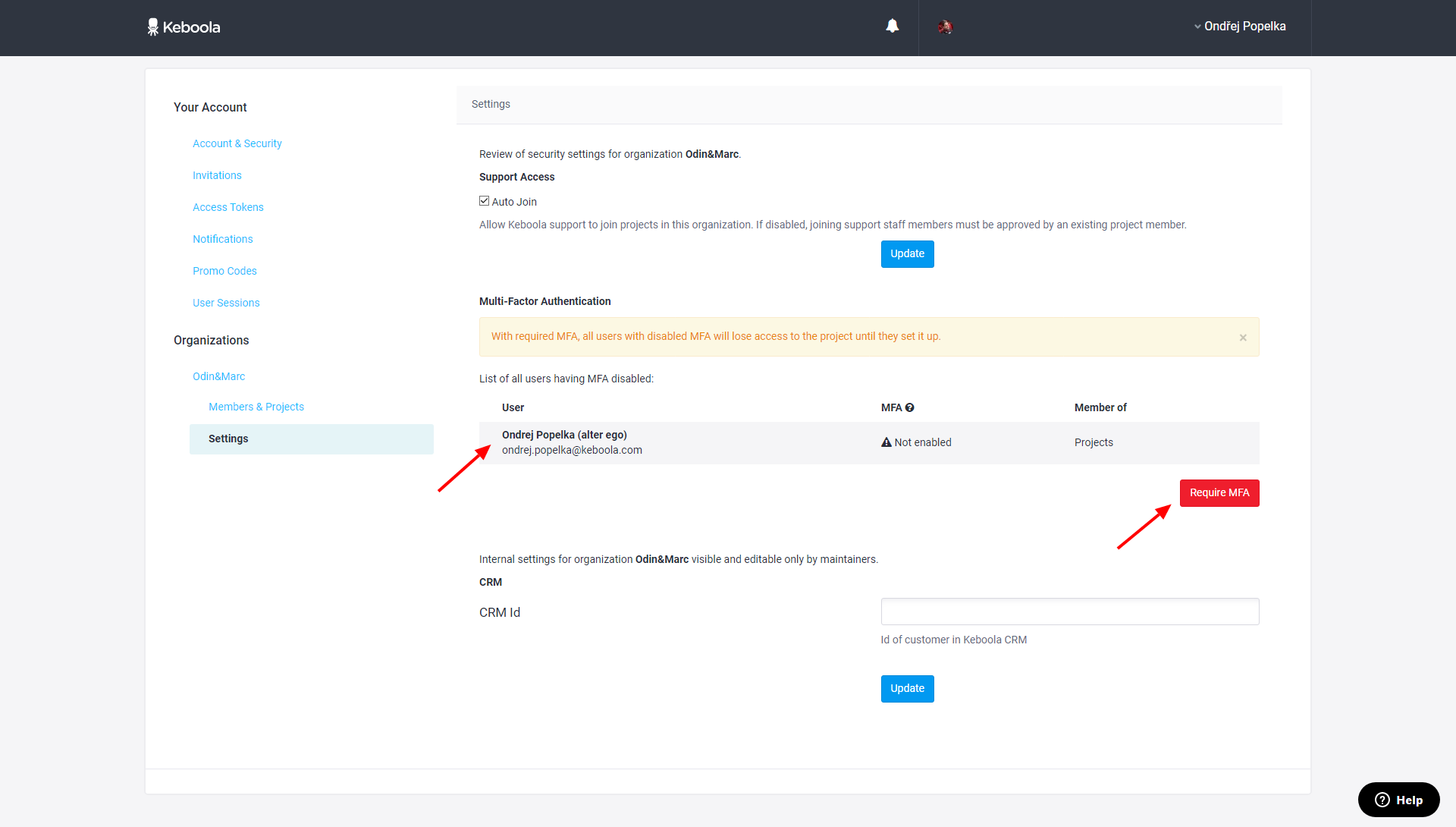
The organization page will show that MFA is required: