 USER DOCUMENTATION
Kai Settings
Kai’s settings let you personalize how Kai behaves in your project. Open the Kai chat panel and click the Settings icon (gear) to access them. Settings are per-user and per-project, so each team member can configure their own preferences independently.
The settings panel has two tabs: Tool Permissions and System Instructions.
Tool Permissions
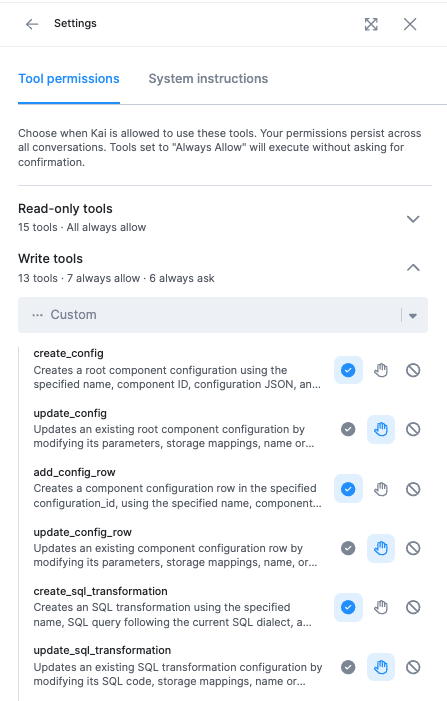
Tool Permissions let you control which tools Kai is allowed to use. This eliminates the need to manually approve each action — you can pre-approve tools you trust and block those you don’t want Kai to use.
Tool Categories
Tools are organized into two categories:
- Read-only tools — Tools that only read data from your project (e.g., listing tables, reading configurations). By default, all read-only tools are set to Always allow.
- Write tools — Tools that can create or modify resources in your project (e.g., creating configurations, updating transformations, running jobs).
Permission Levels
For each tool, you can set one of three permission levels:
| Permission | Behavior |
|---|---|
| Always allow | The tool runs automatically without asking for confirmation. |
| Always ask | Kai must request your approval each time before using the tool. |
| Block | The tool is completely disabled and Kai cannot use it. |
Setting Permissions
You can configure permissions in two ways:
- From the Settings panel — Open Settings → Tool Permissions, find the tool, and select the desired permission level.
- From the approval dialog — When Kai requests approval for a tool, click Always allow to automatically approve that tool for all future uses.
Your permissions persist across all conversations within the same project.
System Instructions
System Instructions let you provide Kai with persistent context and guidelines so you don’t have to repeat yourself in every chat. Instructions exist at two levels: project-level (shared across all users) and user-level (personal to you). User-level instructions amend project-level instructions — both are included in every conversation.
Project-Level Instructions
Project-level instructions apply to all users in the project. They are managed in the project settings:
- Go to Settings → Kai Assistant in the main Keboola navigation.
- Enter your instructions in the System instructions text field.
- The instructions auto-save.
Use project-level instructions for team-wide standards such as:
- Naming conventions — e.g., “Always prefix staging tables with
stg_and use snake_case for all column names.” - Coding standards — e.g., “Write SQL transformations using CTEs instead of subqueries. Always include comments explaining business logic.”
- Project context — e.g., “Our fiscal year starts in April. Revenue calculations should exclude returns and use the
completed_atdate.”
Project-level instructions can be edited by project admins and managers.
User-Level Instructions
User-level instructions are personal to you and are added on top of the project-level instructions. They are configured in the Kai chat panel:
- Open the Kai chat panel.
- Click the Settings icon.
- Select the System Instructions tab.
- Enter your instructions in the text field.
- The instructions auto-save.
Use user-level instructions for personal preferences such as:
- Response style — e.g., “Keep explanations concise. Always show the SQL query before executing it.”
- Preferred workflows — e.g., “Always create transformations in a dev branch first.”
- Language or formatting — e.g., “Respond in German. Use metric units.”
How Instructions Are Applied
When you start a conversation with Kai, both levels of instructions are included:
- Project-level instructions are applied first.
- User-level instructions are appended on top.
This means user-level instructions can refine or add to the project-level instructions but cannot override Kai’s core system rules.
Tips
- Each instruction field supports up to 4,000 characters.
- Keep instructions clear and specific — vague guidelines are less effective.
- Update instructions as your project evolves and conventions change.
- Focus on rules Kai can’t infer from your project data alone (e.g., business logic, team preferences).
- If Kai doesn’t seem to follow an instruction, try rephrasing it more directly.