 USER DOCUMENTATION
Getting Started with Kai
- Access
- Opening Kai
- Example Prompts
- Action Approval
- Contextual Awareness & Follow Mode
- Tips for New Users
- Rate Limits
- Troubleshooting
- Next Steps
Access
Kai is now in Public Beta and available to all users in supported stacks.
Enabling Kai
Every user can see the Kai button in their project (on supported stacks). To enable Kai:
- Organization Admins — Can enable the feature directly from the chat screen when first clicking the Kai button
- Other users — Need to ask their Organization Admin to enable the feature, or contact Keboola Support for assistance
- Settings — Kai can also be enabled via Settings → Features in your project
Opening Kai
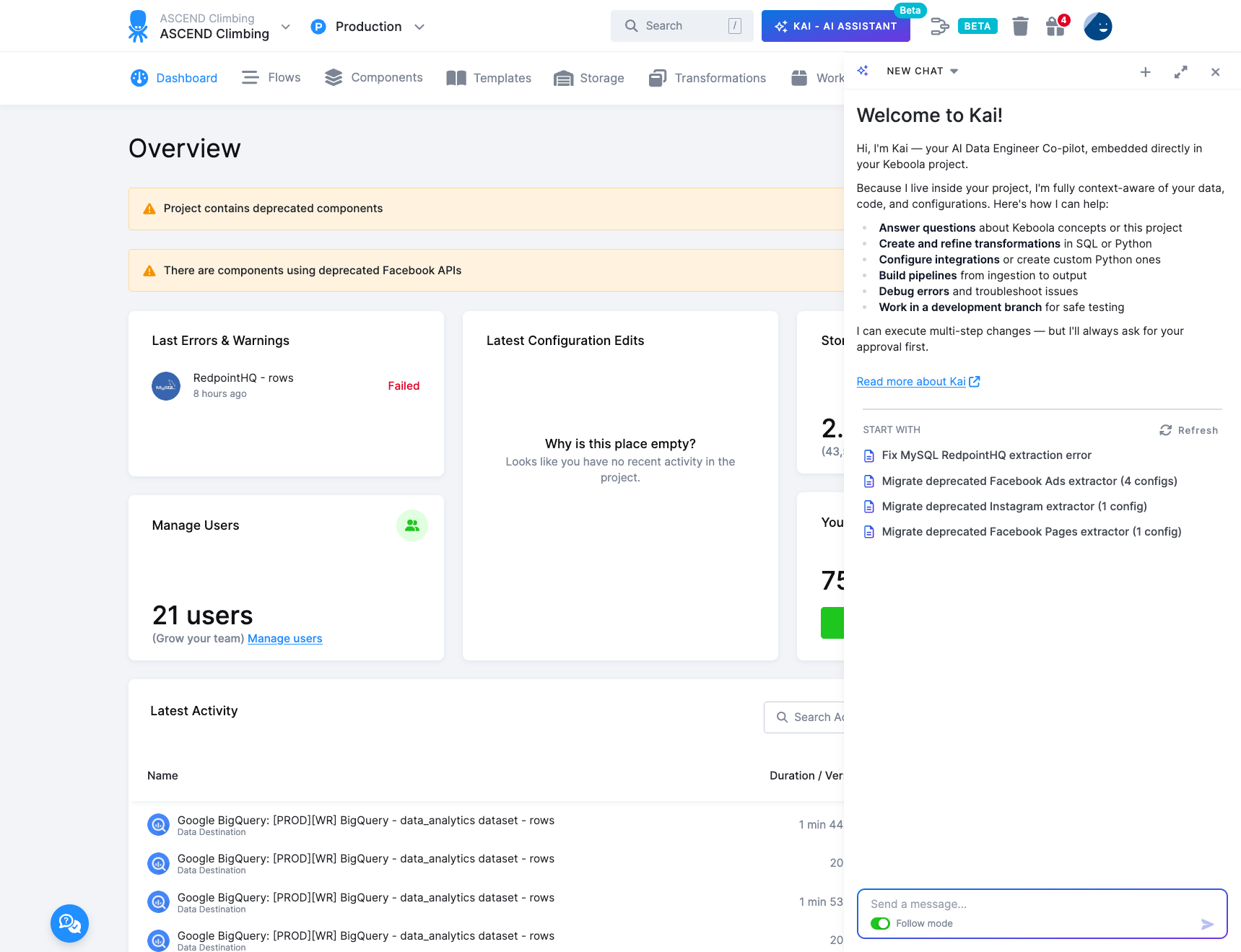
Click the KAI button in your project’s top navigation bar, or use keyboard shortcuts:
| Shortcut | Action |
|---|---|
| A | Open the chat window (shows recent conversation) |
| Ctrl + Shift + A | Open a new chat |
Example Prompts
Explore your project:
- “What tables do we have in this project?”
- “Show me the latest job runs and their status”
- “What extractors are configured?”
Analyze data:
- “Show me the schema for the orders table”
- “How many rows are in the customers table?”
Debug issues:
- “Analyze the latest failed job and tell me what went wrong”
Build things:
- “Help me create a Google Sheets extractor”
- “Create a SQL transformation that calculates monthly totals from my sales data”
Action Approval
When Kai wants to modify your project, you’ll see a tool approval prompt. Review what Kai wants to do before approving. All actions are logged in your project’s audit trail.
You can also click Always allow directly in the approval dialog to skip future confirmations for that specific tool.
For more granular control, see Tool Permissions in Kai Settings.
Contextual Awareness & Follow Mode
Kai is aware of what you’re currently viewing in the Keboola UI. Every message you send includes your current page location, so Kai understands your context without needing explicit references.
How Context Works
- Automatic context capture — When you send a message, Kai receives your current URL path (e.g., which configuration, job, or table you’re viewing)
- Context-aware responses — Kai uses this information to provide relevant suggestions and can reference “this configuration” or “the current job” naturally
- Dynamic updates — Kai checks for the latest context during conversations, so you can navigate to different pages and Kai will adapt
Follow Mode
Follow mode lets you watch Kai work in real-time:
- Automatic navigation — When Kai accesses a configuration, table, or other resource, your browser navigates to that page automatically
- Visual feedback — See exactly what Kai is reading or modifying as it happens
- Toggle control — Enable or disable follow mode from the chat interface based on your preference
This makes interactions more natural—you can say “analyze this job” while viewing a job, and Kai knows exactly which job you mean. When Kai investigates an issue across multiple configurations, you can follow along as it moves through your project.
Tips for New Users
- Start with read-only operations — explore data and configurations first
- Be specific — reference exact table names and component IDs
- Use dev branches — create a branch in the UI, then work with Kai in that branch
- Ask for explanations —
"Explain this SQL query step by step" - Don’t type secrets in chat — Kai uses secure forms for credentials. When setting up extractors or connections, tell Kai what you need and it will prompt you through secure configuration interfaces
Rate Limits
Kai is free during the public beta period.
Each user receives 150 turns (messages) per month per project on contracted plans. The limit resets at the beginning of each calendar month.
- Pay-As-You-Go (PAYG) plans have a lower limit of 50 messages per user per month
- Your current usage is displayed in the chat interface
- Need more? Contact Keboola Support to discuss custom limits for your project
Troubleshooting
| Issue | Solution |
|---|---|
| Kai seems slow | Complex operations take time. Look for “Thinking…” indicator. |
| Kai doesn’t understand | Be more specific with names and IDs. Break complex requests into steps. |
| Actions fail | Check permissions. Verify components exist. Try “retry the last action”. |
| Context confused | Start a fresh chat. Keep conversations focused on one task. |
Next Steps
- Kai Settings — Configure Tool Permissions and System Instructions
- Use Cases & Examples
- Best Practices