 USER DOCUMENTATION
Development Branches
- How Branches Work
- Branched Storage
- Data Pipelines in Branches
- Creating a Branch
- Closing a Branch
- Component Considerations
If you already know how development branches work in general and want to create and start using your first branch, go to our Getting Started tutorial.
Development Branches allow you to modify component configurations without interfering with running configurations or entire orchestrated pipelines. They are ideal to use when making bigger changes to a project or when you need to be extra careful about performing your changes safely.
To give an example, let’s say that you have an ordinary orchestration that extracts, transforms and writes data to a target system, and you need to remove a column from the source. To do that, you must modify several configurations, and ideally, also perform a dry run to check that the data in the target system is correct. However, modifying a pipeline that runs, e.g., every ten minutes, is difficult without an outage of the pipeline. Development Branches are designed to help in such situations.
How Branches Work
When you create a development branch in your project, you obtain an exact copy of the project and all its current configurations. You can then modify these configurations without ever touching the original ones in production, and these will keep running in orchestrations.
When you run a configuration in a branch, it can read the tables and files from Storage as if it were a normal configuration. However, when your branch configuration attempts to write data (tables or files), the data is written to the branch’s isolated storage layer. This means that production data and branch data are completely separated. There is no need to duplicate your entire project’s data when creating a new branch.
Branched Storage
Branched Storage is an improved storage isolation model for development branches. Instead of cluttering your project
with prefixed bucket names (like in.c-1234-bucket), each branch gets its own fully isolated storage namespace.
Production data is never touched, and no data is copied up front — a copy is created only when you actually write to or modify a table within the branch.
ⓘ Tip
Branched Storage is available for projects running on Snowflake. If your project uses BigQuery, the classic prefix-based model still applies — Branched Storage support for BigQuery is coming.
Why It Matters
Without Branched Storage, every write in a branch produced new buckets with prefixed names that were visible in production Storage and cluttered the namespace. You had to be careful about what you ran and where.
With Branched Storage:
- Production is safe — writes in a branch never affect production data.
- No data duplication up front — creating a branch is instant and doesn’t copy your storage. Tables are only materialized when you write to them.
- Reads are transparent — if a table hasn’t been modified in the branch, you’re reading live production data, with no extra cost.
- Clean Storage — the branch has its own storage namespace. No prefixed buckets visible in production.
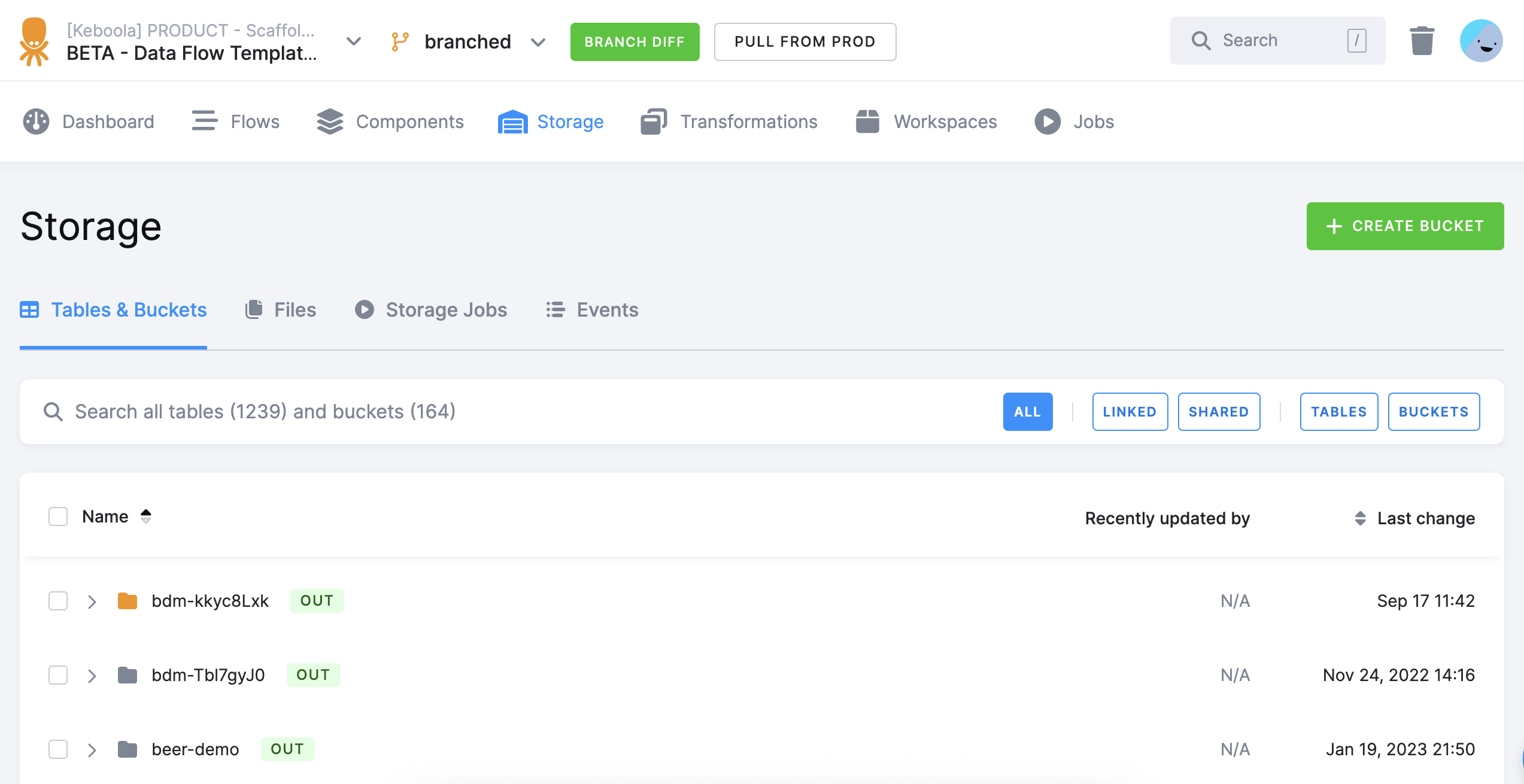
Enabling Branched Storage
Branched Storage is enabled per project in Project Settings. Look for the Branched storage toggle under the Features section.

Once enabled, all new branches in that project will automatically use the isolated storage model.
How It Behaves in Practice
When you create a branch and run a job:
- Reading from a table that hasn’t been modified → the branch reads directly from production. Nothing is copied.
- Writing to a table for the first time → the table is cloned into the branch’s isolated storage. All subsequent reads and writes for that table within the branch use this isolated copy.
- Production is never touched — regardless of how many times you write in a branch.
When you delete or merge the branch, the branched storage is cleaned up accordingly.
Data Pipelines in Branches
In production, you might have a data source connector that extracts data into a bucket in.c-requests, and a transformation
that reads from it and writes results to out.c-visits.
When you switch to a branch on a Snowflake project with Branched Storage enabled, no data is copied immediately.
The branch reads from production Storage until you run a job that writes data — at that point, only the affected tables
are materialized in the branch’s own storage. Your production out.c-visits remains untouched throughout.
This allows you to test the entire pipeline with real data, in complete isolation from production, without duplicating all storage content at branch creation.
Creating a Branch
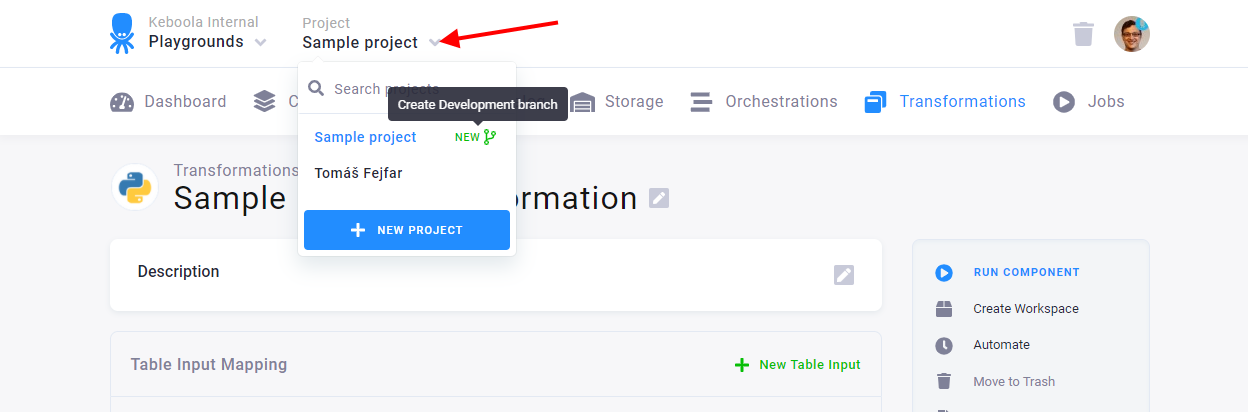
If you have your configurations ready in production and want to create a branch to test some changes, click on your project’s name at the top of the screen. Then click on the green icon New displayed next to your project’s name.
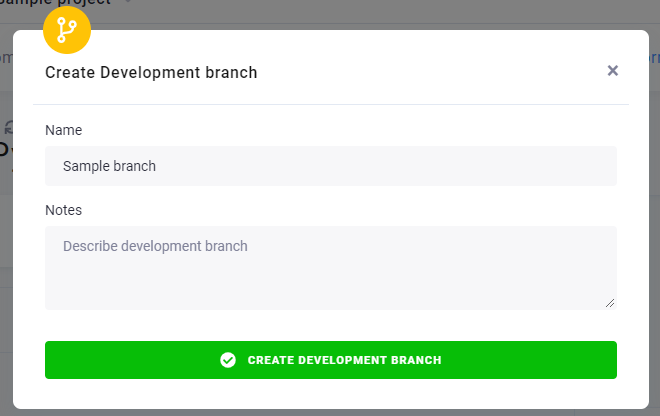
Name your new branch and click Create Development Branch to open it.
The branch will appear right below the name of your production project.
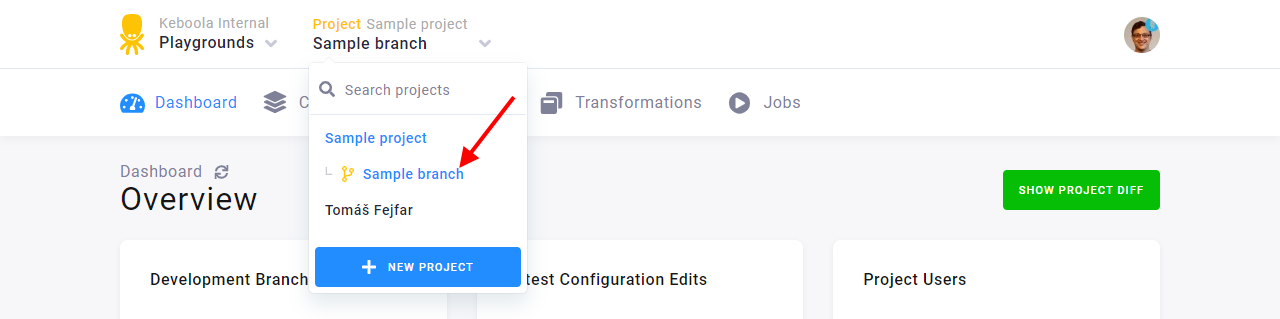
Now you can start modifying your configurations, run them, and analyze the results.
If you want to learn more about working in a branch, follow our tutorial.
Closing a Branch
Before you merge your development branch back to production, check a detailed diff of the configuration changes.
You can end your branch’s lifecycle in two ways:
- Deleting — if you do not wish to use the changes you’ve made and want to simply discard them. The data associated with the branch is discarded when the branch is deleted.
- Merging into production — all changes in the configurations are brought back to the respective production configurations. All the changes are applied at once (after you approve them) and produce new versions of the respective configurations. The branch can be either deleted or kept for further reference after merging.
Important: All of this happens within the same project, enabling collaboration with other project members on the modifications.
Component Considerations
Certain components are not allowed to run in development branches. There are following special cases where components’ functionality is limited in the development branches.
Working with External Resources
Some components, like writers, can write to a destination that is external to Keboola. Those components’ configs are first marked as unsafe in development branch.
You will not be able to run an unsafe config. You need to first observe the config and verify that it’s either OK to write to the destination, or change the destination accordingly.
OAuth Authorized Components
Components using OAuth do not allow authorizing nor changing the OAuth in a development branch. The OAuth authorization tokens are shared with production so changing them might break the production pipeline.
Important: Development branches are for development and testing only, so setting up status notifications on Flows is not supported.